A Practical Guide for Teacher-Creators
A Practical Guide for Teacher-Creators

Article by
Milo
ESL Content Coordinator & Educator
ESL Content Coordinator & Educator
All Posts
A Notion page can hold a lesson plan, a reading list, a set of classroom videos, and links to the resources students need next. But a collection of links is only useful if people can tell where each one goes. The words you make clickable—called anchor text—can turn a cluttered resource page into a much clearer guide for students, families, and colleagues.
That small detail matters whether you are building a class hub, organizing professional development materials, or sharing a Notion template with other teachers. Clear link wording helps readers choose the right next step without opening every page to find out what it contains.
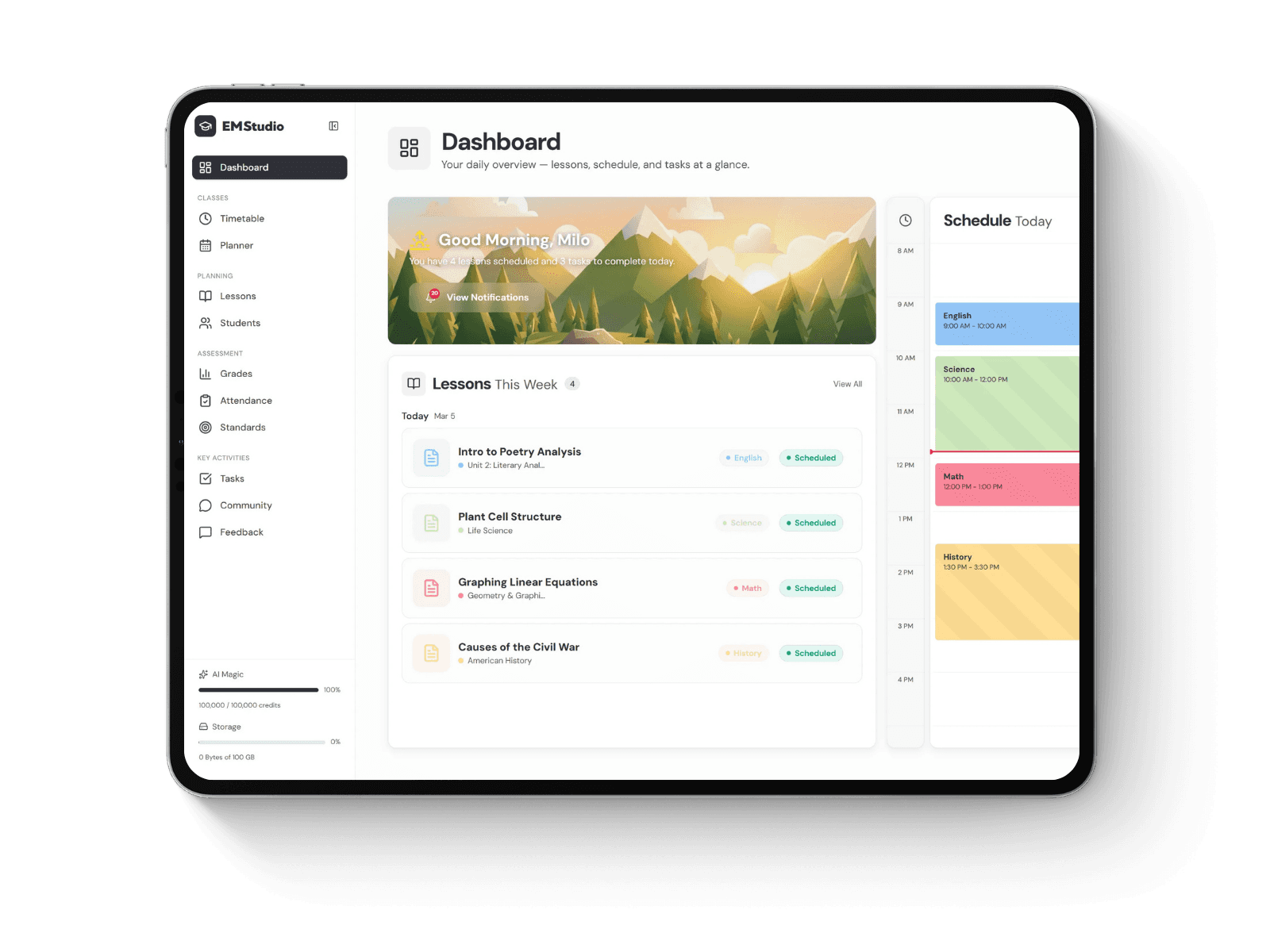
Still grading everything by hand?
EMStudio is a free teaching management app — manage your classes, students, lessons, and more!
Learn More
Still grading everything by hand?
EMStudio is a free teaching management app — manage your classes, students, lessons, and more!
Learn More
Table of Contents
What anchor text does
Anchor text is the visible, clickable wording attached to a link. In a sentence such as “Download the unit vocabulary list,” the words “unit vocabulary list” can link to the file. The link destination may be the same either way, but the reader gets more information from a specific description than from “click here.”
It also gives search engines and assistive technologies useful context about a linked page. For a fuller explanation of how it works and the different forms it can take, see this guide to anchor text. For teachers, the practical takeaway is straightforward: link labels should help a person understand the destination and decide whether it is relevant.
Make links useful in a Notion classroom hub
Imagine a page for a history unit with links to a primary source, a short explainer video, a discussion prompt, and an assessment rubric. If every link says “Read more” or “Open here,” students have to rely on the surrounding layout—or click each one—to work out what they need. Descriptive labels make the page easier to scan, particularly on a phone or a school Chromebook.
Instead of vague wording, try labels such as:
Read: “Excerpt from the 1912 factory report”
Watch: “Three-minute overview of the water cycle”
Practice: “Check your understanding: fractions”
Submit: “Upload your completed lab reflection”
These labels tell students both the type of resource and what it covers. If an activity has a particular audience or format, include that too: “Audio version of the chapter” is more informative than “Chapter link.”
Keep wording specific and consistent
A good link label is usually short, but short does not mean cryptic. “Week 3” might make sense to the person who built the page and mean very little to a student who returns to it later. “Week 3: ecosystems reading” carries enough context to stand on its own.
Consistency helps, especially when several classes or units use the same Notion workspace. Choose a simple pattern—perhaps “Read,” “Watch,” “Try,” and “Submit”—and use it across pages. Then add the topic or resource name. Students learn what to expect, and teachers can spot missing materials more quickly.
It is also worth checking that the link wording matches the destination. If the label promises a printable worksheet but the link opens a video, readers lose time and confidence. When a destination changes, update the label as well as the URL.
Use links with accessibility in mind
Some readers use a screen reader or navigate a page by moving from link to link. A list of identical “click here” labels is difficult to use when the surrounding paragraph is not read aloud. Specific wording makes each link more meaningful on its own.
Color should not be the only signal that text is clickable, either. Keep the link wording clear and use a layout that makes links easy to recognize. For longer resource pages, group links under headings such as “Read,” “Watch,” or “Turn in” rather than placing them in one long paragraph. In Notion, a small amount of structure often does more for usability than adding another decorative callout.
When teachers publish video resources
Teacher-creators also use short videos to explain a concept, introduce a template, or show how a classroom workflow works. A repeatable production routine can make these resources easier to create without turning every clip into a separate project. For educators selling resources or running a small training business, video production systems for small businesses can offer ideas such as batching recordings, reusing templates, and adapting one lesson into several formats. Osdire is one place businesses use to find freelance help across creative and technical work, but the core systems—clear briefs, reusable steps, and organized files—are useful even when you are working solo.
Once a video is ready, its link still needs a useful label. “Watch the setup walkthrough” gives more guidance than “Video.” If you have several clips, include the topic or sequence number so students can return to the right one without guessing.
A quick review before sharing
Before sending a Notion page to students or colleagues, scan its links from the reader’s point of view. Can someone understand each destination without clicking it? Are labels specific enough to distinguish similar resources? Does every link open the promised material? A two-minute review can prevent avoidable questions and make the page feel much easier to navigate.
Notion gives teachers a flexible place to gather learning materials, but the structure has to do some of the teaching. Thoughtful anchor text helps readers move through that structure with less friction—and helps a useful resource stay useful after the first visit.
What anchor text does
Anchor text is the visible, clickable wording attached to a link. In a sentence such as “Download the unit vocabulary list,” the words “unit vocabulary list” can link to the file. The link destination may be the same either way, but the reader gets more information from a specific description than from “click here.”
It also gives search engines and assistive technologies useful context about a linked page. For a fuller explanation of how it works and the different forms it can take, see this guide to anchor text. For teachers, the practical takeaway is straightforward: link labels should help a person understand the destination and decide whether it is relevant.
Make links useful in a Notion classroom hub
Imagine a page for a history unit with links to a primary source, a short explainer video, a discussion prompt, and an assessment rubric. If every link says “Read more” or “Open here,” students have to rely on the surrounding layout—or click each one—to work out what they need. Descriptive labels make the page easier to scan, particularly on a phone or a school Chromebook.
Instead of vague wording, try labels such as:
Read: “Excerpt from the 1912 factory report”
Watch: “Three-minute overview of the water cycle”
Practice: “Check your understanding: fractions”
Submit: “Upload your completed lab reflection”
These labels tell students both the type of resource and what it covers. If an activity has a particular audience or format, include that too: “Audio version of the chapter” is more informative than “Chapter link.”
Keep wording specific and consistent
A good link label is usually short, but short does not mean cryptic. “Week 3” might make sense to the person who built the page and mean very little to a student who returns to it later. “Week 3: ecosystems reading” carries enough context to stand on its own.
Consistency helps, especially when several classes or units use the same Notion workspace. Choose a simple pattern—perhaps “Read,” “Watch,” “Try,” and “Submit”—and use it across pages. Then add the topic or resource name. Students learn what to expect, and teachers can spot missing materials more quickly.
It is also worth checking that the link wording matches the destination. If the label promises a printable worksheet but the link opens a video, readers lose time and confidence. When a destination changes, update the label as well as the URL.
Use links with accessibility in mind
Some readers use a screen reader or navigate a page by moving from link to link. A list of identical “click here” labels is difficult to use when the surrounding paragraph is not read aloud. Specific wording makes each link more meaningful on its own.
Color should not be the only signal that text is clickable, either. Keep the link wording clear and use a layout that makes links easy to recognize. For longer resource pages, group links under headings such as “Read,” “Watch,” or “Turn in” rather than placing them in one long paragraph. In Notion, a small amount of structure often does more for usability than adding another decorative callout.
When teachers publish video resources
Teacher-creators also use short videos to explain a concept, introduce a template, or show how a classroom workflow works. A repeatable production routine can make these resources easier to create without turning every clip into a separate project. For educators selling resources or running a small training business, video production systems for small businesses can offer ideas such as batching recordings, reusing templates, and adapting one lesson into several formats. Osdire is one place businesses use to find freelance help across creative and technical work, but the core systems—clear briefs, reusable steps, and organized files—are useful even when you are working solo.
Once a video is ready, its link still needs a useful label. “Watch the setup walkthrough” gives more guidance than “Video.” If you have several clips, include the topic or sequence number so students can return to the right one without guessing.
A quick review before sharing
Before sending a Notion page to students or colleagues, scan its links from the reader’s point of view. Can someone understand each destination without clicking it? Are labels specific enough to distinguish similar resources? Does every link open the promised material? A two-minute review can prevent avoidable questions and make the page feel much easier to navigate.
Notion gives teachers a flexible place to gather learning materials, but the structure has to do some of the teaching. Thoughtful anchor text helps readers move through that structure with less friction—and helps a useful resource stay useful after the first visit.
Still grading everything by hand?
EMStudio is a free teaching management app — manage your classes, students, lessons, and more!
Learn More
Still grading everything by hand?
EMStudio is a free teaching management app — manage your classes, students, lessons, and more!
Learn More


Notion4Teachers
Notion templates to simplify administrative tasks and enhance your teaching experience.



2026 Notion4Teachers. All Rights Reserved.
Notion4Teachers
Notion templates to simplify administrative tasks and enhance your teaching experience.
2026 Notion4Teachers. All Rights Reserved.
Notion4Teachers
Notion templates to simplify administrative tasks and enhance your teaching experience.
2026 Notion4Teachers. All Rights Reserved.