How to Build a Homeschool Kindergarten Schedule in Notion

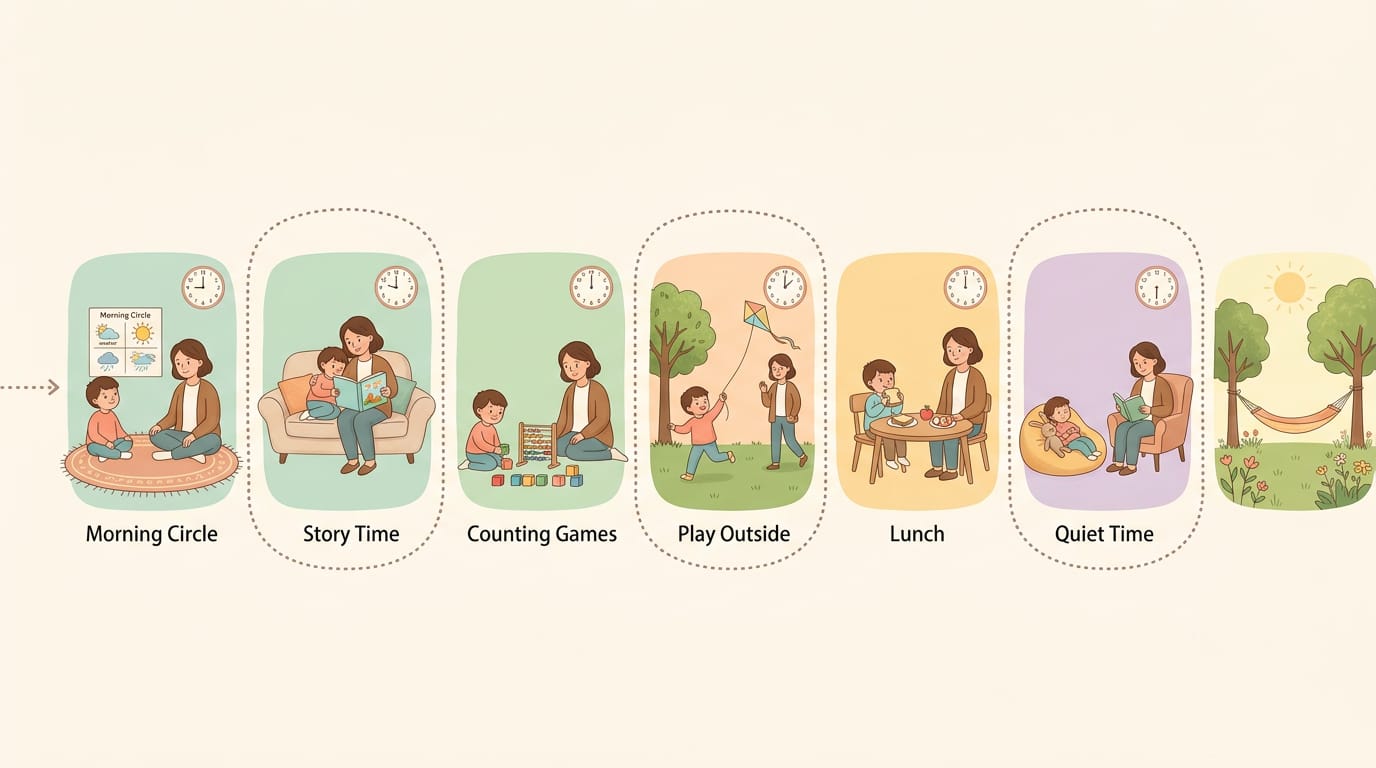
A homeschool kindergarten schedule works best as a few short lessons of 15 to 20 minutes, with play, meals and rest in between. Here is a sample morning: 9:00 morning circle, 9:45 story time, 10:00 counting games, 10:45 play outside, 12:00 lunch, 12:30 quiet time. The afternoon stays free.
This guide builds that same week on the Schedule page of the Ultimate Homeschool Planner. When you finish, each block has a time, its days and a tag, and the whole week shows on your Dashboard.
Ultimate Teacher Planner
The ultimate all-in-one education management system in Notion.
A sample homeschool kindergarten day
Starts | Block | How long |
|---|---|---|
9:00 | Morning circle: the date, the weather, a song | 15 minutes |
9:15 | Snack and free play | until story time |
9:45 | Story time: read aloud, talk about the pictures | 15 minutes |
10:00 | Counting games: dice, blocks, counting stairs | 15 to 20 minutes |
10:20 | Free play | until it is time to go out |
10:45 | Play outside | until lunch |
12:00 | Lunch | |
12:30 | Quiet time: books, puzzles or a nap |
The lessons are short because a five-year-old's attention runs out quickly, and a lesson that ends while your child is still keen is easier to start again tomorrow. Free play fills the gaps, so it doesn't need a block of its own in your planner.
How many hours a day does a kindergartener need?
There's less sit-down work than most parents expect. In the day above, the lessons add up to about 50 minutes: morning circle, story time and counting games. Everything else is play, reading together, meals and rest, and at this age that counts as learning too. A homeschool day is shorter than a school day because nobody waits for a class of twenty-five to line up, settle down or take turns.
Rules on hours and days differ by state and by country, so check what your homeschool law asks you to keep. The planner's Attendance and Logbook pages are there for that record.
A daily rhythm or a clock schedule?
A clock schedule fixes a start time for every block. A daily rhythm keeps the same order every day and pins it to a few anchors, like breakfast, lunch and quiet time. Most kindergarten families end up somewhere between the two. The order stays the same, so your child knows that story time comes after circle, but nobody watches the clock to the minute.
The planner fits that well. In the Schedule database, Time of Day is a list of set times (12:00 AM, 01:00 AM and so on, plus some in-between times such as 09:45 AM and 10:45 AM), not a box where you type any time. You pick the nearest time, and the board puts the blocks in order. What you see down each column is your rhythm, with a rough time next to each block.
What the planner gives you for a schedule
The Schedule page sits under Key Activities in the planner's menu, next to Tasks. It opens on a board called Weekly Schedule. The Weekly tab has one column per day, and an All tab next to it holds the same blocks as a table. Each block is a card that shows its name, its tags, the child it's for and its time. The template starts with one example card, Morning Routine at 12:15 PM, on every weekday.
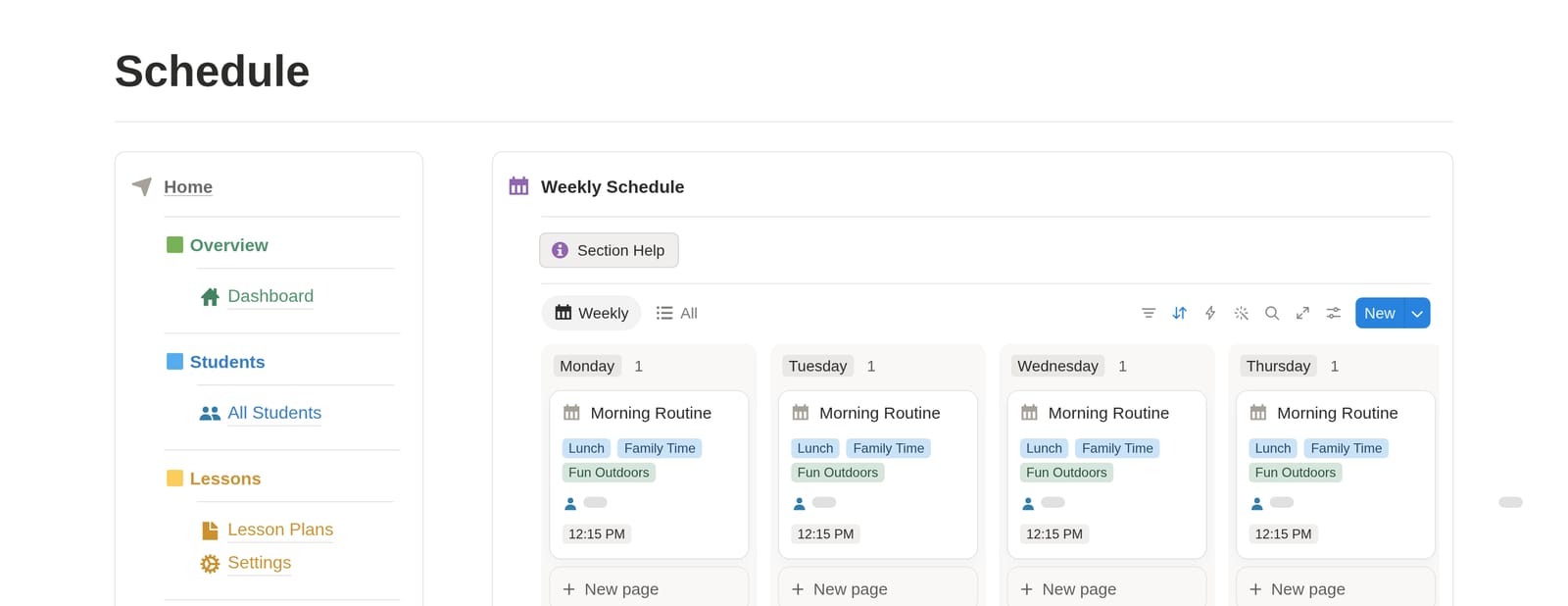
Each block has three groups of properties: When? (Time of Day, Day of Week), Who? (Students) and What? (Tags). The tags come with the template: Getting Ready, Family Time, Eat & Start, Lunch, Relax, Chill, Move, Get Active, Fun Outdoors, Play Time, Outside Fun, Free Play, Numbers, Brain Power, Puzzles, Reading, Writing and more.
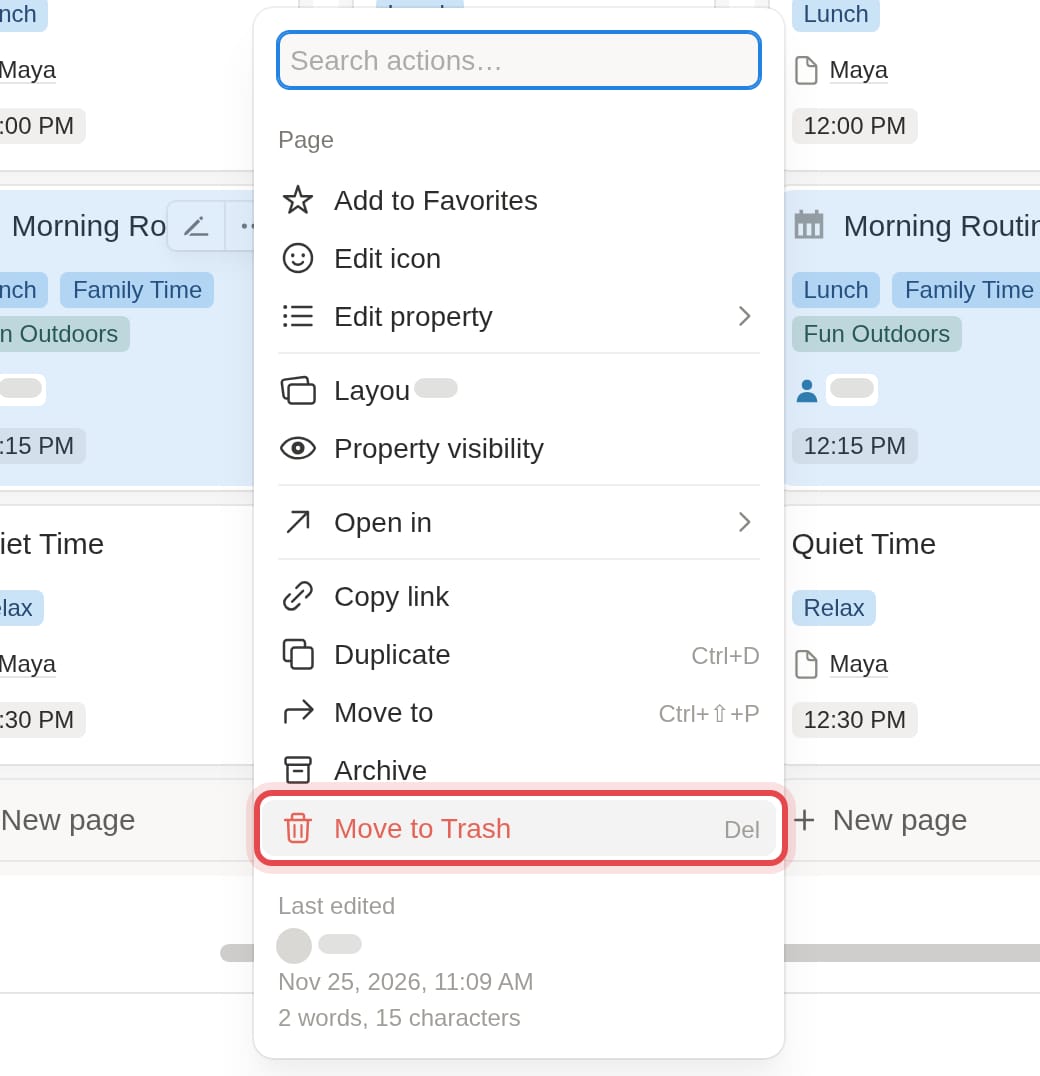
You won't need the example card, so delete it before you start. Morning Routine is one card that shows under every weekday. Point at it, click the ⋯ that appears on the card, and choose Move to Trash.
Build the kindergarten week, step by step
The example child here is Maya. Use your own child's name, from the planner's Students page.
Make the first block by hand
Open the Schedule page. It opens on the Weekly board.
Under Monday, click + New page. A new card called New Schedule appears in the Monday column.
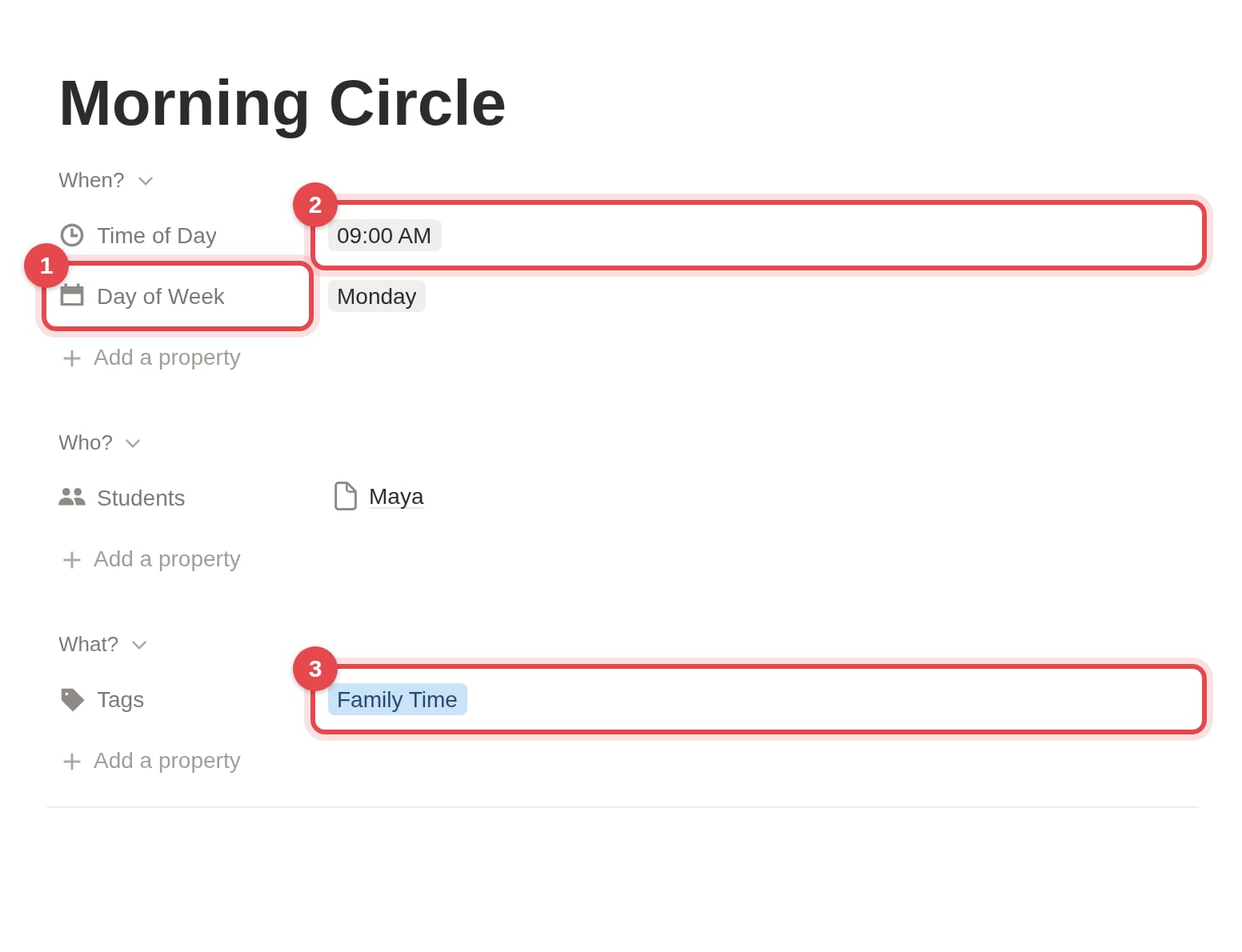
Open the new card. Click its title, press Ctrl+A (Cmd+A on a Mac) to select "New Schedule", and type the block's name: Morning Circle.
Look at Day of Week. It already says Monday, because you made the card in Monday's column.
Click the empty space to the right of Time of Day. Don't click the words "Time of Day": they open a menu for the property itself (Rename, Edit property, Delete property). A list of times opens, with a Search for an option... box at the top. Click 09:00 AM.
Click the empty space to the right of Students. The list shows every child in your planner. Click your child, then press Escape to close the list.
Click the empty space to the right of Tags and pick Family Time. The list stays open in case you want a second tag. Press Escape when you're done.
Add the rest of the day
Make one card for each block, the same way. These are the blocks used here:
Block | Time of Day | Tag |
|---|---|---|
Story Time | 09:45 AM | Reading |
Counting Games | 10:00 AM | Numbers |
Play Outside | 10:45 AM | Fun Outdoors |
Lunch | 12:00 PM | Lunch |
Quiet Time | 12:30 PM | Relax |
The template has no "Quiet Time" tag, so Relax does that job, and Fun Outdoors covers playing outside.
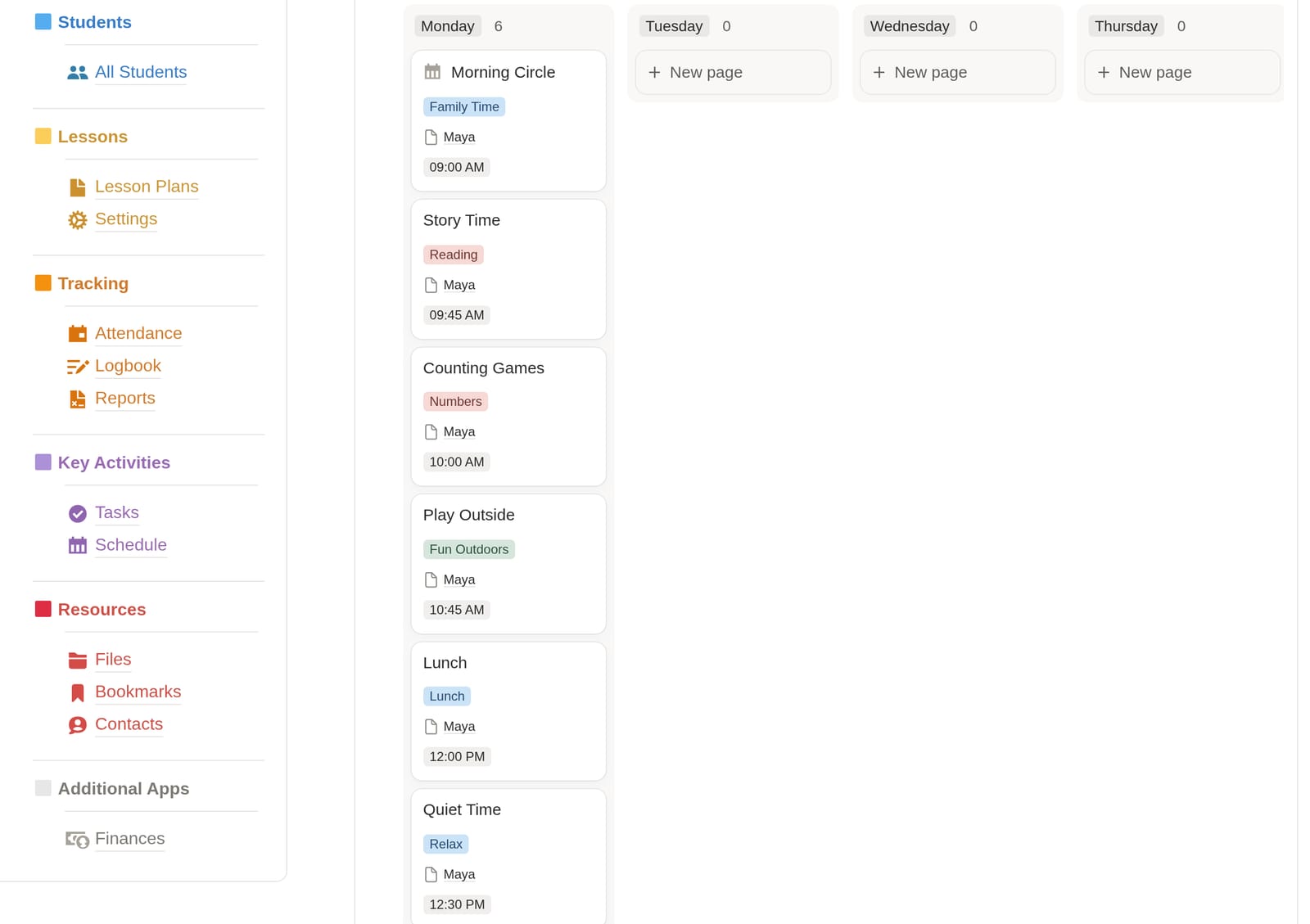
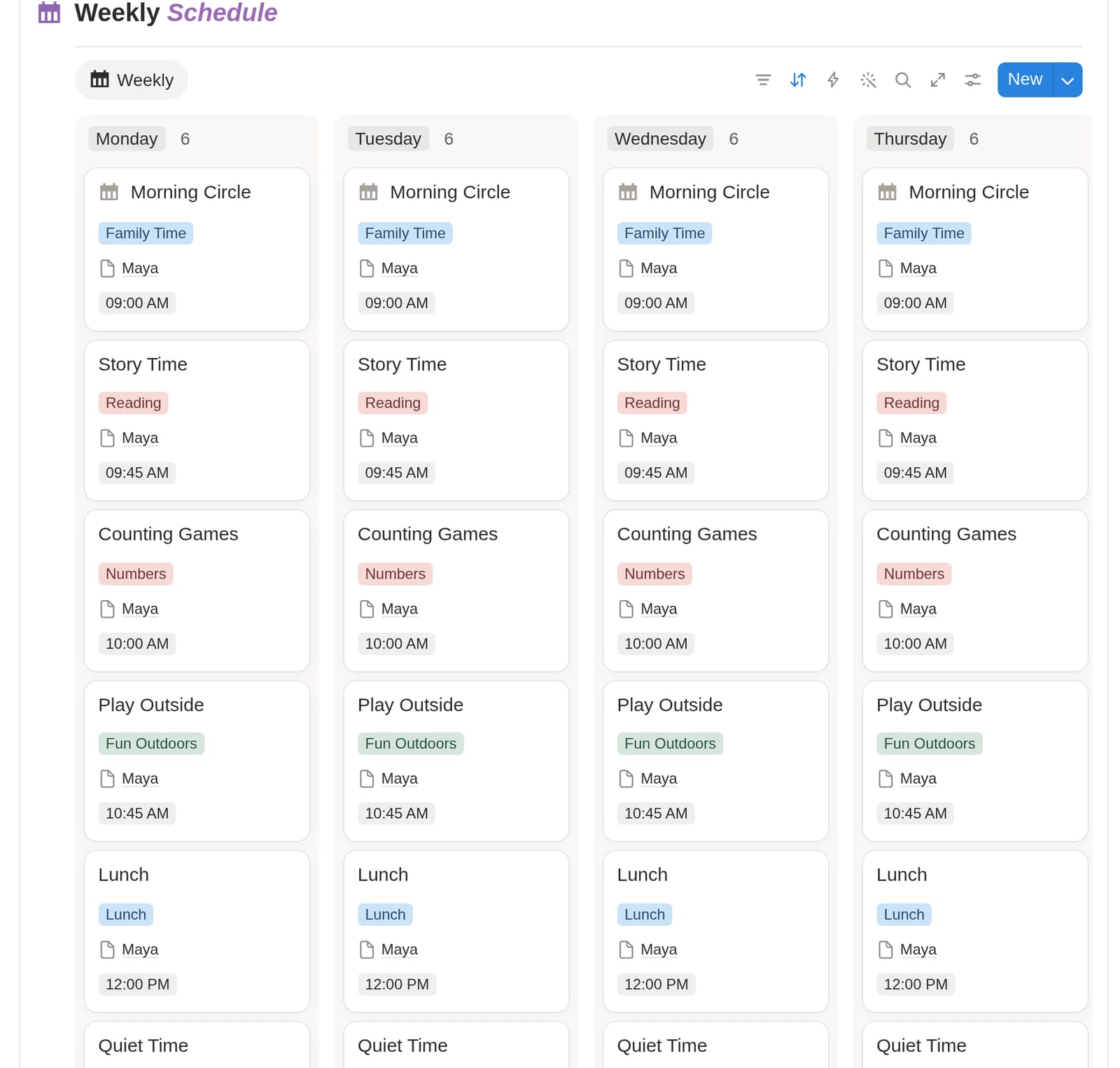
Go back to the Weekly board. The cards sit in time order down Monday's column, so the column reads like the day itself, and the count next to Monday reads 6. Each tag keeps its own color, so you can see where reading and outdoor time fall at a glance. The other days stay empty until the next step.
Set the blocks for Monday to Friday
Open a block and click the days next to Day of Week. A list of the days opens, Monday to Sunday. The days already chosen sit at the top, each with its own remove button. Click Tuesday, Wednesday, Thursday and Friday so they join Monday. The list stays open while you click, so press Escape when you're done.
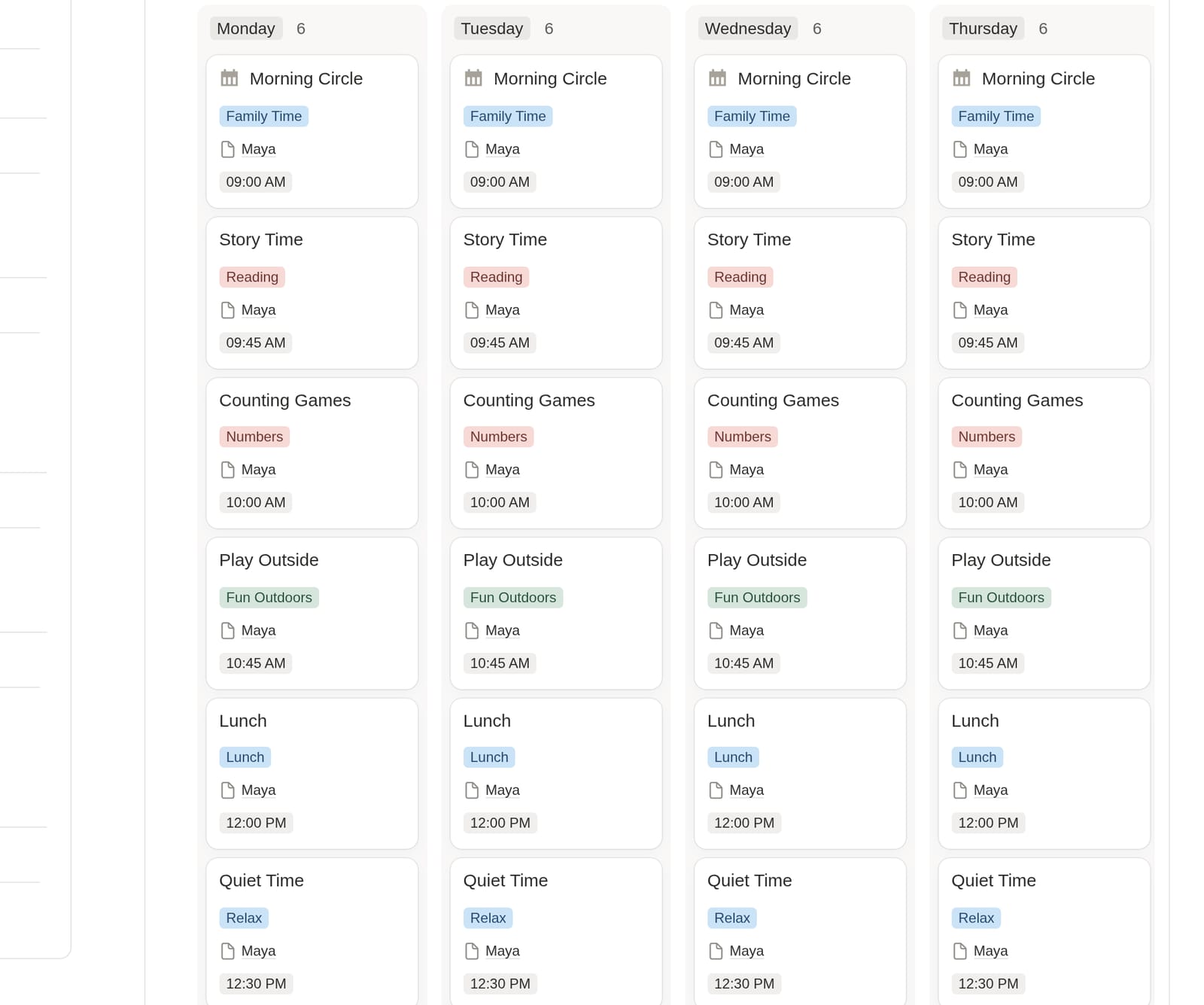
Do the same for every block. Each card now shows up in every weekday's column, in the same order, and every day's count reads 6.
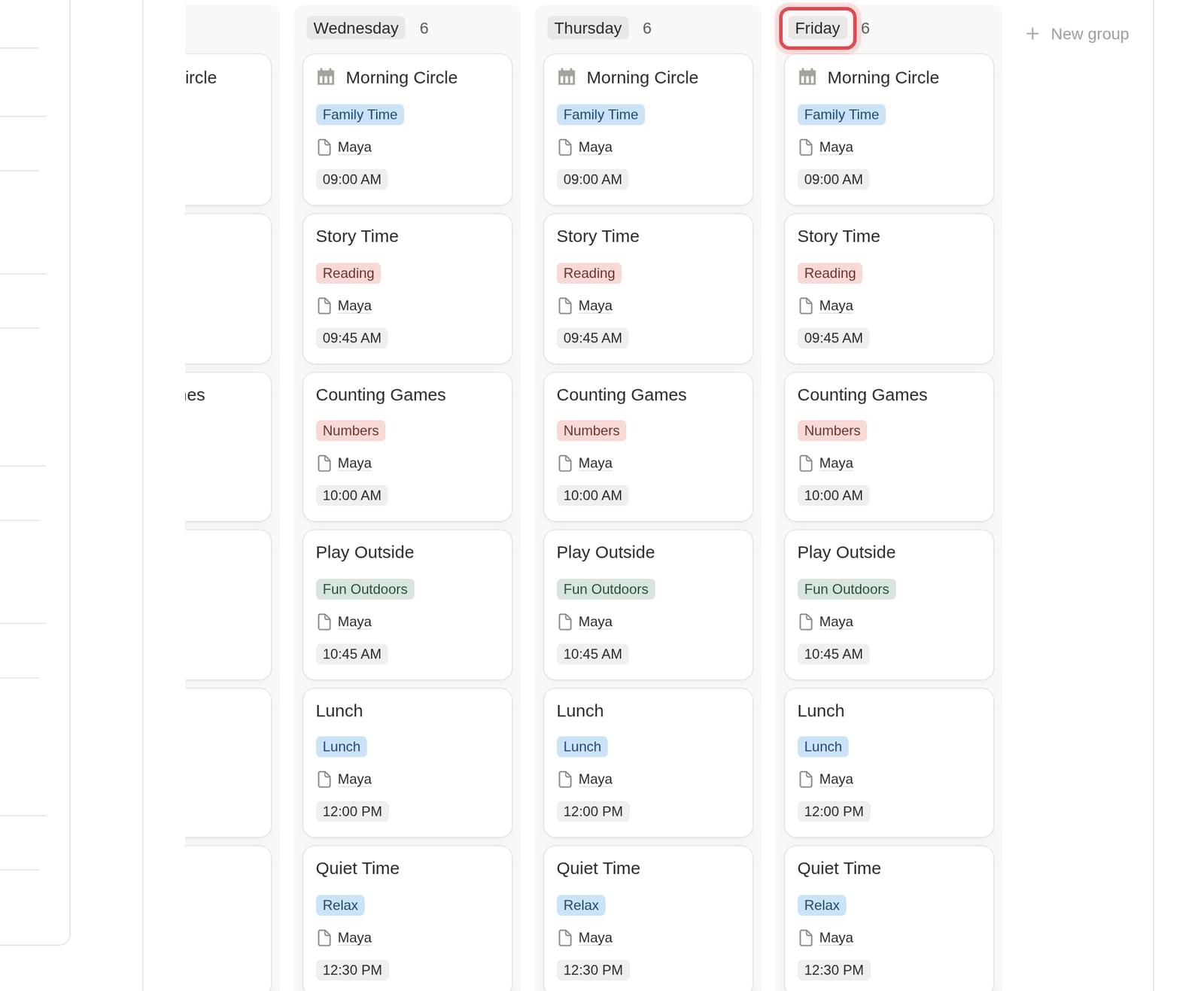
The board is wider than the window, so Friday is off to the right. Scroll the board sideways to check it.
See the week on your Dashboard
Open the Dashboard (under Overview in the planner's menu) and scroll down past the task list to Weekly Schedule. It shows the same blocks as the Schedule page, so whatever you change on one shows on the other. You don't need to open the Schedule page to see what comes next.
Get the Ultimate Homeschool Planner
One schedule for two children of different ages
With a kindergartener and an older child, keep one rhythm for the house and give each child their own lessons inside it.
Shared blocks: story time, play outside, lunch and quiet time work for both. A read-aloud can be the older child's listening practice as well.
Short blocks first: do the kindergartener's 15-minute lessons while the older child starts something they can do alone. Then switch: the older child gets your full attention during the little one's quiet time.
One card per lesson, per child: in the planner, make a separate card for each child's own lesson and put that child under Students. Put the child's name in the card's title too, so the board is easy to read.
Each child's page in Students shows how many schedule blocks are linked to them (Maya's page shows "6 Schedule"), so you can see one child's week from their page.
Make it your own
Pick the tags you'll look for. If you think in subjects, use Reading, Numbers and Writing. If you think in energy, use Move, Get Active and Relax. Either way, the colors show the shape of the day.
Use the All tab when you want every block in a single list instead of by day.
Use the nearest time. If the time you want isn't in the Time of Day list, choose the closest one. At this age the order matters more than the minute.
Leave space. Not every weekday needs every block. Take Counting Games off Friday and use that morning for a trip to the library or a nature walk.
For the rest of the planner (students, lessons, attendance and the logbook), see our complete guide to the Ultimate Homeschool Planner.
When the schedule does not work
Most kindergarten schedules need a few changes in the first weeks. Common signs and what to try:
Tears or fidgeting at the same block every day: make it shorter, or put a run outside or a dance right before it.
The hard lesson goes badly after lunch: move it to the morning, when your child is fresh.
Blocks keep running over: you have too many. Drop one and turn it into play.
Your child asks for more: let a block run longer that day. Don't change the schedule until it happens often.
To change a block in the planner, open it and pick another time from the Time of Day list. To take a block off a day, open Day of Week and use that day's remove button. Use the same list to add a day back.
What can go wrong in the planner
Your typing lands inside "New Schedule". If you type straight onto a new card, the words can end up in the middle of the old name ("New ScheMorning Circledule"). Open the card, click the title, press Ctrl+A (Cmd+A on a Mac) and type the name again.
A menu with Rename and Edit property opens. You clicked the property's name. Press Escape and click the empty space to its right.
Your child's page opens. Clicking the Students row of a block that already has a child opens that child's page as a preview. Press Escape to go back to the block.
FAQ
How long should a kindergarten homeschool lesson be?
15 to 20 minutes is a good length. Stop while your child is still interested, and put play or time outside between lessons.
What should a homeschool kindergarten schedule include?
Short blocks for reading and numbers, a morning circle or another start-of-day habit, time outside, lunch and a quiet time. Free play fills the rest.
Do I have to start at exactly 9:00?
No. Many families keep the order and let the times move. The planner's Time of Day list is there to put the blocks in order, and the board shows them that way.
Can I see the schedule without opening the Schedule page?
Yes. The Dashboard has a Weekly Schedule board lower on the page, and it shows the same blocks.
Can I plan for a kindergartener and an older child in the same planner?
Yes. Each block has a Students property, and the list shows every child in your planner. Give each child's lessons their own cards so the board shows who is doing what.
More planners for teaching at home and in the classroom are on Notion4Teachers. The steps above use the Ultimate Homeschool Planner.
Ultimate Teacher Planner
The ultimate all-in-one education management system in Notion.