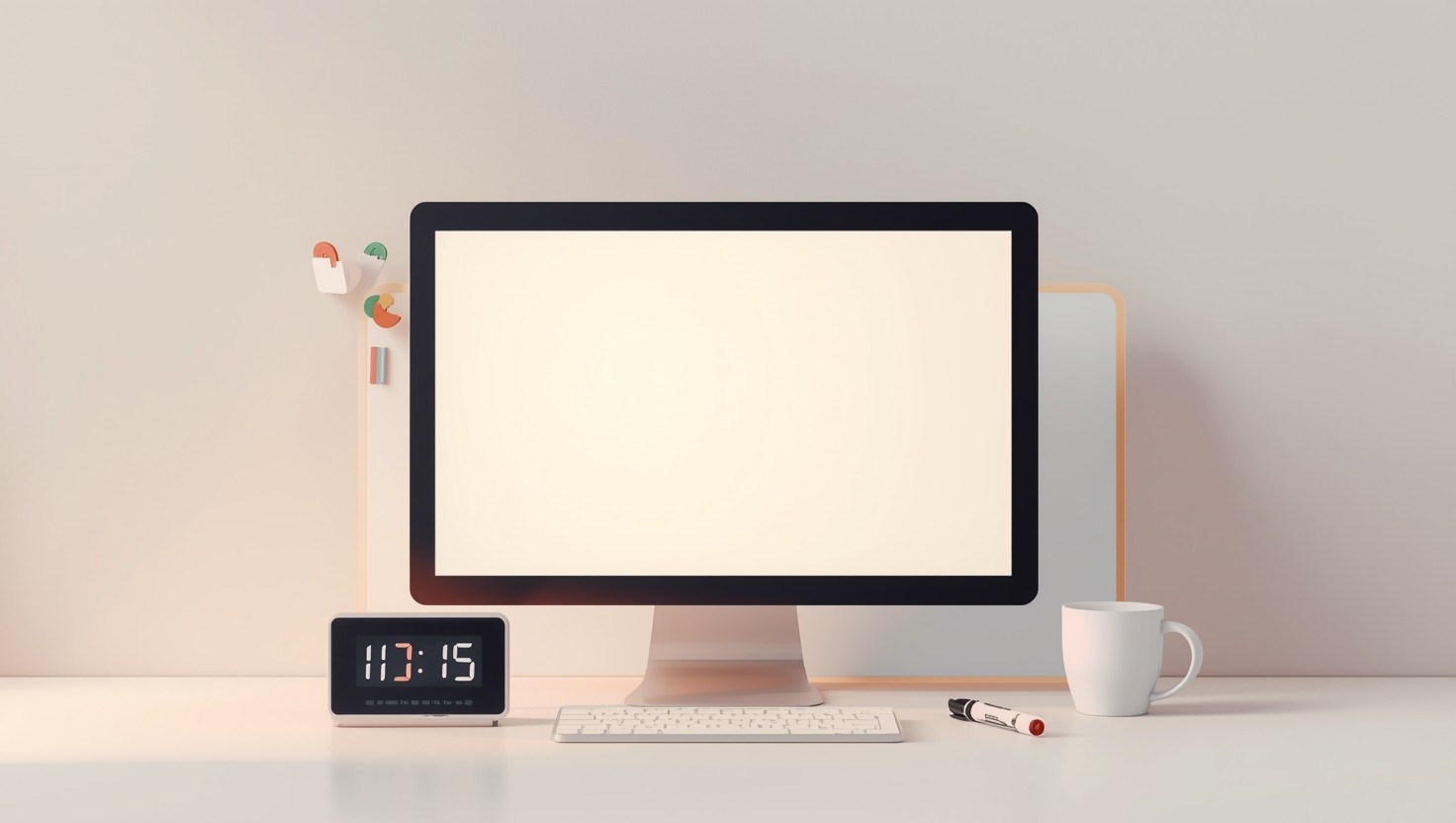
Classroom Screen Template: Daily Digital Dashboard Setup
Classroom Screen Template: Daily Digital Dashboard Setup

Article by
Milo
ESL Content Coordinator & Educator
ESL Content Coordinator & Educator
All Posts
You know that 7:45 AM scramble? You’re projecting the morning slides from Google Drive, tabbing over to the timer app, pulling up the attendance list, and praying the classroom screen doesn’t freeze before the bell rings. I’ve watched teachers lose five minutes of instructional time just hunting for the right browser tab while 28 third graders dissolved into chaos.
This template fixes that. It’s a single digital dashboard that replaces the patchwork of classroom management software cluttering your interactive display. You get your schedule, visual timer, noise meter, and student response systems in one view. No more clicking between twelve apps. No more “Ms., the screen’s frozen again.” Just a clean layout that gets you through transitions without the tech hiccups.
I built this after watching my own morning routine crumble one too many times. Below, you’ll get the exact setup I use now, plus how to adapt it whether you’re teaching kindergarten or 8th grade.
Still grading everything by hand?
EMStudio is a free teaching management app — manage your classes, students, lessons, and more!
Learn More

Still grading everything by hand?
EMStudio is a free teaching management app — manage your classes, students, lessons, and more!
Learn More
Table of Contents
What's Included in This Classroom Screen Template?
This classroom screen template includes six core components. You get a visual daily agenda with time-stamped learning objectives. Interactive noise monitoring (Bouncy Balls or Classcraft). Countdown timers. Random name pickers for equitable participation. Student work spotlight zones using Kami integration. Embedded exit ticket prompts. Available as Google Slides, PowerPoint, or direct ClassroomScreen.com links for immediate deployment.
Visual timer: Either embed a YouTube "15 Minute Countdown" video or use the built-in ClassroomScreen timer. Set it to 15 minutes for middle schoolers, 10 for elementary. The red bar creeping across the screen keeps kids honest about time left.
Noise monitor: Bouncy Balls works best. Set sensitivity to 50% for a 30-student class. The balls jump when voices rise above workshop level. I've found it more effective than hand signals for keeping group work volume in check.
Daily agenda slide: Built on Master Slide layout with WALT (We Are Learning To) and WILF (What I'm Looking For) objectives. Time-stamp each transition so students stop asking "how long until lunch?"
Random name picker: Flippity or Wheel of Names embedded via iframe. Pre-load your roster at the start of each month. It removes names once picked, ensuring every kid gets called on before repeats.
Student work spotlight: A dedicated zone for showcasing examples via Kami integration or simple screenshot uploads. Rotate student work every two weeks. Kids check this board first thing in the morning.
Exit ticket prompt: Embedded Google Form or Padlet link at the bottom right. Set it to auto-populate with the day's learning target. Takes 30 seconds to customize, gives you instant data on who got it.
You get three options for deployment. The Google Slides 16:9 template uses Master Slide layouts. This locks the clock and agenda text so you can't accidentally drag them into the wrong place while presenting. Download the PowerPoint .pptx if your district blocks Google Workspace. It includes embedded fonts so your clean sans-serif agenda doesn't revert to Comic Sans on the school computer. Or grab a direct ClassroomScreen.com shareable link for immediate deployment of these time-saving classroom hacks. Note: the free tier caps you at three saved screens. If you teach multiple subjects, you'll hit that limit fast unless you upgrade or clear screens daily.
This works on whatever glowing rectangle your district bolted to your wall. Promethean ActivPanel, SMART Board 6000 series, or a standard 55-65 inch TV via HDMI all handle it fine. You need minimum 1080p resolution. Anything less and the WALT objectives turn to mush when viewed from 20 feet away. I've tested this on a decade-old projector and a brand new interactive display. The class screen stays readable as long as you keep text above 24pt. Brightness matters more than touch capability. A dim screen defeats the purpose.
These six tools turn your interactive display into active classroom management software. The noise meter handles volume control. The visual timer manages pacing. The exit ticket serves as your student response system for formative checks. You stop being the timekeeper and traffic cop. You get to teach.
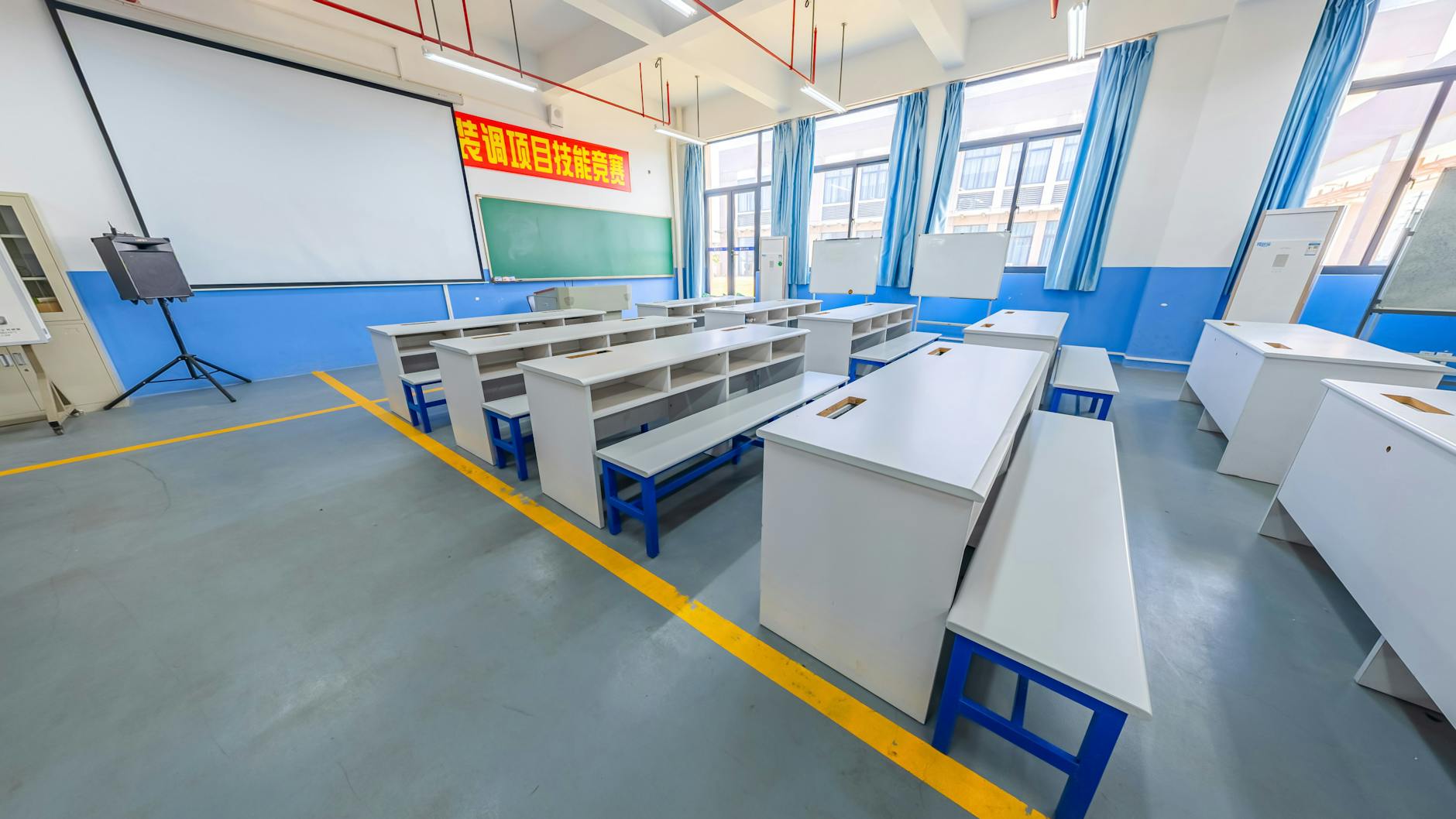
Template Structure and Core Components
Every effective classroom screen runs on five core widgets. Don't try to cram more than four active zones on one display—cognitive overload is real, and your back row needs to read without squinting. Stick to the 1-inch text height per 10 feet distance rule: if your last desk sits 30 feet away, your smallest font needs to be 3 inches tall (roughly 72pt). When used right, this setup functions better than expensive classroom management software suites because the tools are visible to students, not just data for administrators.
Here's your build list:
Opening Routine and Daily Agenda Display. Use Google Slides Master View. Prep time: 5 minutes. Suitable for K-12.
Interactive Timer and Noise Monitoring Widgets. Choose ClassroomScreen, YouTube embeds, or TimerTab plus Bouncy Balls. Prep time: 10 minutes. Universal.
Student Work Spotlight Zones. Integrate with Kami. Prep time: 5 minutes. Best for grades 3-12.
Random Name Picker and Group Generator. Use Flippity.net or built-in tools. Prep time: 5 minutes. K-12.
Exit Ticket and Reflection Prompts. Embed Google Forms or Padlet. Prep time: 10 minutes. Grades 3-12.
Elementary and secondary implementations differ significantly:
Feature | Elementary (K-5) | Secondary (6-12) |
|---|---|---|
Widget Complexity | Single-focus zones only | Multi-widget panels acceptable |
Font Size | 72pt minimum | 32pt minimum |
Noise Sensitivity | 30-40% (forgiving) | 50-60% (strict) |
Younger students need those larger fonts on your interactive display because they sit on the carpet and floor spaces. High schoolers can parse smaller text from desk seats, but they need stricter noise meter settings since they can actually control their volume when held accountable.
Opening Routine and Daily Agenda Display
Configure your digital dashboard using Google Slides Master View. Insert text boxes for date, WALT (We Are Learning To), WILF (What I'm Looking For), and exactly 3-4 agenda items with specific time stamps like "9:00-9:15 Bell Ringer." Don't list seven activities—kids stop reading after four.
Set font sizes at 72pt for headings visible from 25 feet, 32pt for subtext. Use high-contrast colors meeting WCAG 2.1 AA standards (4.5:1 ratio). Yellow text on white fails. Black on cream works.
Interactive Timer and Noise Monitoring Widgets
You have three solid options for visual timer displays. ClassroomScreen's countdown lets you customize background colors for different subjects. YouTube's "25 Minute Pomodoro" embed works well—pause at 5 minutes remaining for a cleanup warning. For offline reliability, use TimerTab.com when the Wi-Fi flakes. If you're implementing the Pomodoro technique, the visual countdown keeps you honest about work blocks.
For the noise meter, configure Bouncy Balls at 50% sensitivity for classes of 25-30 students. Position your tablet microphone at teacher desk level, not near HVAC vents. That vent noise triggers false red alerts every three minutes.
Student Work Spotlight Zones
Integrate with Kami your digital classroom: Screenshot exemplary student work, upload to Kami, display via HDMI with the annotation toolbar visible. This turns your screen classroom into a live gallery walk where you circle strong thesis statements or highlight text evidence in real time.
Establish a rotation protocol: Display 3-4 examples per class period, rotating every 2 minutes. Longer causes habituation; kids stop looking. Shorter creates anxiety. Keep the toolbar on so you can mark up work as you discuss it.
Random Name Picker and Group Generator
Use Flippity.net Random Name Picker with CSV roster import or ClassroomScreen's built-in feature. Configure for groups of 3-4 students with "remove after selection" enabled. This ensures equitable participation—no hiding behind "you already picked me last time."
Include a "Reset Day" protocol: Clear the "already picked" list every Monday to prevent tracking errors across weeks. For modern class participation methods, combine the picker with think-pair-share protocols so the randomness feels safe, not punitive.
Exit Ticket and Reflection Prompts
Embed a QR code linking to a Google Form with maximum 3 questions—any more triggers survey fatigue. Or use a Padlet wall for multimedia responses. Position the code in the bottom-right corner of your classroom screens for easy scanning from desks without kids leaving their seats.
Rotate between three research-backed protocols: 3-2-1 (3 things learned, 2 wondered, 1 question), emoji temperature check (ððð), or one-sentence summary using academic vocabulary. Student response systems fail when overused; vary the format daily.

Step-by-Step Setup Guide
Selecting Your Platform: ClassroomScreen App vs. Hyperdocs
Start with one question: Is your internet reliable? If the WiFi drops every time it rains, skip the cloud apps. Go straight to hyperdocs in the classroom built on Google Slides. They work offline once loaded, which saves you when the network crashes mid-lesson. If you have solid connectivity, the classroom screen app Pro version runs $29 a year and gives you unlimited saves plus over 100 widgets. That is the cost of two coffee runs for a tool that updates itself.
Reliable WiFi? Yes → classroom screen app Pro ($29/year, cloud-based).
Reliable WiFi? No → hyperdocs in the classroom via Google Slides (free, offline-capable).
I built my first Hyperdoc in 45 minutes because I had to embed every timer manually. ClassroomScreen took eight minutes. Choose Slides if you need custom animations or have spotty coverage. Choose the app if you want innovative tools to engage and inspire without the HTML headache.
Configuring the Layout Grid for Your Display Size
Your interactive display size dictates the grid. On a 65-inch board, use a 3x2 grid. On a 55-inch, stick to 2x2. Anything denser turns into wallpaper that kids ignore. Walk to the back corner of your room before you finalize the layout. If you cannot read it from there, neither can your students.
65-inch display: Use 3x2 grid.
55-inch display: Use 2x2 grid.
The visibility rule is simple: text needs to be one inch tall for every ten feet of viewing distance. In a 30-foot deep room, that is three-inch tall fonts. Most projection systems render that at 144pt. Test this with a piece of paper taped to your board—measure the actual projected height. Your digital dashboard fails if the kids in the back row cannot see the visual timer counting down. I learned this when my 2nd period complained they could not see the agenda from seat 24. Bumped the font to 144pt and suddenly everyone knew what page to open.
Embedding Essential Widgets and Tools
Building in Google Slides? Follow the sequence:
File > Page Setup > 16:9 widescreen.
View > Master to edit the template.
Insert > Video for timers—YouTube has 10-minute countdowns that never glitch.
Set body text to 32pt minimum and headers to 48pt.
For external tools like Poll Everywhere or Mentimeter, use this iframe structure: . But here is where teachers trip up: classroom screen free versions limit you to six active widgets per screen, and Pro gives you unlimited. More importantly, never stack more than four zones on any layout. Cognitive load theory is real—when you cram six widgets on one screen, students stare at the noise meter instead of your directions. Mute all autoplay audio before you project. Nothing kills momentum like a timer beeping while you give instructions. You can integrate EdTech seamlessly into your lesson plans by testing every embedded video the night before.
Saving Your Template and Creating Daily Copies
Build your Google Drive architecture once. Create a "Template Master" folder with view-only permissions for your originals. Create a "Daily Copies" folder with edit access.
Template Master: View-only permissions.
Daily Copies: Edit access for active use.
Archive: Monthly migration to prevent clutter.
When you make a copy each morning, use the naming convention: YYYY-MM-DD-Period-Subject. "2024-01-15-3B-Science" tells you exactly when you used it and which class saw it. The initial build takes 45 minutes. Daily operation takes two minutes—open the template, File > Make a Copy, rename, done. Set a calendar reminder to archive daily copies monthly. Move them to a "Past Lessons" folder so your Drive does not clog, but keep them for parent conferences. One critical protocol: clear your classroom screen during assessments. That student response system data or classroom management software feed could help a cheater. Blank the screen or switch to a physical timer. Your classroom screen is a teaching tool, not a testing aid.

How Do You Customize This Template for Different Grade Levels?
Customize by grade band: Elementary (K-5) requires larger fonts (minimum 72pt), ClassDojo visual cues, and simplified 3-item agendas to reduce cognitive load. Secondary (6-12) supports complex Hyperdocs integration, Kami PDF annotation displays, and real-time polling tools. For EL students, add visual icons; for ADHD accommodations, disable motion widgets and use static timers instead of animated noise meters.
Elementary Adaptations (K-5)
Younger kids can’t process a cluttered teacher screen. I learned this after my 1st graders stared blankly at a dashboard packed with widgets. Now I follow these non-negotiables:
Use 72pt minimum fonts for everything—agenda items, timers, even the date. Anything smaller gets lost from the back rug.
Limit your agenda to three items max. I use ClassDojo point counters as visual cues next to each task so my 2nd graders know exactly where we are in the day.
Add Bitmoji classroom elements. Those cartoon avatars signal "this space is yours" to 8-year-olds better than any color-coded chart.
Set your noise meter sensitivity to low for K-2. Bouncy Balls and similar tools trigger anxiety or hyper-competitive shouting matches.
Research on working memory is clear: elementary students require approximately 40% fewer on-screen visual elements than secondary students to achieve optimal retention. I remove all decorative clipart for grades K-3. My 3rd graders in October need that cognitive bandwidth for multiplication strategies, not for interpreting cute animated GIFs.
Secondary Adaptations (6-12)
High schoolers can handle complexity. They actually prefer it. My juniors roll their eyes if the interactive display looks too "elementary." This setup works:
Run SAT/ACT countdown widgets in the corner—constant low-stakes reminders of what’s coming without you saying a word.
Display Kami your digital classroom directly on your classroom screen for real-time PDF annotation. Show the document as students highlight and comment from their Chromebooks. It beats passing around one paper copy.
Embed student response systems like Mentimeter or Poll Everywhere for phone-based interaction. They pull out phones anyway; capture that energy for a quick poll on symbolism in The Great Gatsby.
Let one student per week suggest screen content. Sometimes it’s a meme. Sometimes it’s a college logo. Either way, they look at the board because they chose what’s on it.
Special Populations and Accommodations
Your template must adapt beyond grade level. For EL/ELL students, pair every text element with icons from The Noun Project. A small clock icon next to "Warm-Up" bridges language gaps faster than translation apps.
For students with ADHD or specific IEP accommodations, disable animated widgets entirely. Replace Bouncy Balls with the static traffic light noise system from ClassroomScreen—red means stop talking, yellow means whisper, green means full volume. No bouncing required. Static visual timer bars work better than spinning countdowns for kids who get overstimulated by motion.
These adjustments support differentiated instruction strategies without creating separate lesson plans. One digital dashboard, multiple access points. That’s the goal.

Implementation Tips and Best Practices
The best digital dashboard fails if you treat it like a microwave clock. Set it and forget it works for appliances, not for classroom technology. Hyperlinks rot. Dates from last semester linger like bad smells. That timer you embedded in August stops working when the third-party site changes its URL. You need a weekly five-minute audit. Check three things: Do the links open? Are the dates current? Does the noise meter still respond to sound? Fix what breaks immediately. Small cracks become big problems during observations or when you need that visual timer to actually work.
Watch your own posture. I caught myself teaching to the interactive display instead of to the kids. Hattie's Visible Learning research puts teacher clarity at a 0.75 effect size—high impact. You destroy that clarity when your back faces the room while you read from the screen. Stand to the side. Face your students. Use the classroom screen as a reference point, not a teleprompter. The kids need to see your face to read your cues. If you need strategies for classroom management and support, start with your own body position.
Lock down during assessments. Clear every widget from view. Disable those fun student response systems and name pickers. Students can read answers reflected in your glasses or spotted in their peripheral vision. I once had a kid ace a spelling test because he could see the word list reflected in the glossy screen bezel from his seat in the second row. If you must use a visual timer during testing, place a piece of cardboard folded into a tent shape in front of the screen. Block the view from student desks. They see only the time remaining. Nothing else.
Build a maintenance rhythm that matches the school calendar:
Weekly: Test every widget. Click every link. Verify the classroom management software syncs with your current roster. Five minutes every Friday prevents Monday morning disasters.
Monthly: Change your color scheme. Shift from blue to green. Swap header images. Novelty prevents habituation. When students stop noticing the screen, they stop responding to it. A fresh look resets their attention.
Each semester: Run a three-question survey. Ask students to rate screen helpfulness on a 1–5 Likert scale. Ask what distracted them. Ask what helped. Use science-backed methods to improve student focus based on that data, not your assumptions.
Check accessibility before the first day. WCAG 2.1 AA standards require a 4.5:1 contrast ratio between text and background. That trendy pastel you love might fail this test. Use a contrast checker. Replace animated timers with static countdowns for photosensitive students—flashing numbers trigger migraines or seizures in susceptible kids. Add alt-text to every image so screen readers describe your interactive display content to blind students. These fixes take minutes and keep you compliant without sacrificing function.

Final Thoughts on Classroom Screen
The teachers who see real behavior shifts aren't the ones with the flashiest interactive display backgrounds. They're the ones who turn it on before the first kid walks through the door. A digital dashboard only works when it becomes invisible infrastructure—students glance at the timer, check their group assignment, and get to work without you saying a word. If you're constantly fussing with tabs or apologizing for the blank screen while you hunt for the right link, you've lost them. The screen should remove friction, not add another layer of performance.
Start tomorrow. Pick one component—maybe the visual timer or the morning directions slide—and have it loaded before you pour your coffee. Test it with your first period. Notice what actually saves you breath versus what becomes digital wallpaper. You can always add the fancy classroom management software integrations later, but the habit of starting class with everything ready? That's the move that changes the energy in your room.
What's Included in This Classroom Screen Template?
This classroom screen template includes six core components. You get a visual daily agenda with time-stamped learning objectives. Interactive noise monitoring (Bouncy Balls or Classcraft). Countdown timers. Random name pickers for equitable participation. Student work spotlight zones using Kami integration. Embedded exit ticket prompts. Available as Google Slides, PowerPoint, or direct ClassroomScreen.com links for immediate deployment.
Visual timer: Either embed a YouTube "15 Minute Countdown" video or use the built-in ClassroomScreen timer. Set it to 15 minutes for middle schoolers, 10 for elementary. The red bar creeping across the screen keeps kids honest about time left.
Noise monitor: Bouncy Balls works best. Set sensitivity to 50% for a 30-student class. The balls jump when voices rise above workshop level. I've found it more effective than hand signals for keeping group work volume in check.
Daily agenda slide: Built on Master Slide layout with WALT (We Are Learning To) and WILF (What I'm Looking For) objectives. Time-stamp each transition so students stop asking "how long until lunch?"
Random name picker: Flippity or Wheel of Names embedded via iframe. Pre-load your roster at the start of each month. It removes names once picked, ensuring every kid gets called on before repeats.
Student work spotlight: A dedicated zone for showcasing examples via Kami integration or simple screenshot uploads. Rotate student work every two weeks. Kids check this board first thing in the morning.
Exit ticket prompt: Embedded Google Form or Padlet link at the bottom right. Set it to auto-populate with the day's learning target. Takes 30 seconds to customize, gives you instant data on who got it.
You get three options for deployment. The Google Slides 16:9 template uses Master Slide layouts. This locks the clock and agenda text so you can't accidentally drag them into the wrong place while presenting. Download the PowerPoint .pptx if your district blocks Google Workspace. It includes embedded fonts so your clean sans-serif agenda doesn't revert to Comic Sans on the school computer. Or grab a direct ClassroomScreen.com shareable link for immediate deployment of these time-saving classroom hacks. Note: the free tier caps you at three saved screens. If you teach multiple subjects, you'll hit that limit fast unless you upgrade or clear screens daily.
This works on whatever glowing rectangle your district bolted to your wall. Promethean ActivPanel, SMART Board 6000 series, or a standard 55-65 inch TV via HDMI all handle it fine. You need minimum 1080p resolution. Anything less and the WALT objectives turn to mush when viewed from 20 feet away. I've tested this on a decade-old projector and a brand new interactive display. The class screen stays readable as long as you keep text above 24pt. Brightness matters more than touch capability. A dim screen defeats the purpose.
These six tools turn your interactive display into active classroom management software. The noise meter handles volume control. The visual timer manages pacing. The exit ticket serves as your student response system for formative checks. You stop being the timekeeper and traffic cop. You get to teach.
Template Structure and Core Components
Every effective classroom screen runs on five core widgets. Don't try to cram more than four active zones on one display—cognitive overload is real, and your back row needs to read without squinting. Stick to the 1-inch text height per 10 feet distance rule: if your last desk sits 30 feet away, your smallest font needs to be 3 inches tall (roughly 72pt). When used right, this setup functions better than expensive classroom management software suites because the tools are visible to students, not just data for administrators.
Here's your build list:
Opening Routine and Daily Agenda Display. Use Google Slides Master View. Prep time: 5 minutes. Suitable for K-12.
Interactive Timer and Noise Monitoring Widgets. Choose ClassroomScreen, YouTube embeds, or TimerTab plus Bouncy Balls. Prep time: 10 minutes. Universal.
Student Work Spotlight Zones. Integrate with Kami. Prep time: 5 minutes. Best for grades 3-12.
Random Name Picker and Group Generator. Use Flippity.net or built-in tools. Prep time: 5 minutes. K-12.
Exit Ticket and Reflection Prompts. Embed Google Forms or Padlet. Prep time: 10 minutes. Grades 3-12.
Elementary and secondary implementations differ significantly:
Feature | Elementary (K-5) | Secondary (6-12) |
|---|---|---|
Widget Complexity | Single-focus zones only | Multi-widget panels acceptable |
Font Size | 72pt minimum | 32pt minimum |
Noise Sensitivity | 30-40% (forgiving) | 50-60% (strict) |
Younger students need those larger fonts on your interactive display because they sit on the carpet and floor spaces. High schoolers can parse smaller text from desk seats, but they need stricter noise meter settings since they can actually control their volume when held accountable.
Opening Routine and Daily Agenda Display
Configure your digital dashboard using Google Slides Master View. Insert text boxes for date, WALT (We Are Learning To), WILF (What I'm Looking For), and exactly 3-4 agenda items with specific time stamps like "9:00-9:15 Bell Ringer." Don't list seven activities—kids stop reading after four.
Set font sizes at 72pt for headings visible from 25 feet, 32pt for subtext. Use high-contrast colors meeting WCAG 2.1 AA standards (4.5:1 ratio). Yellow text on white fails. Black on cream works.
Interactive Timer and Noise Monitoring Widgets
You have three solid options for visual timer displays. ClassroomScreen's countdown lets you customize background colors for different subjects. YouTube's "25 Minute Pomodoro" embed works well—pause at 5 minutes remaining for a cleanup warning. For offline reliability, use TimerTab.com when the Wi-Fi flakes. If you're implementing the Pomodoro technique, the visual countdown keeps you honest about work blocks.
For the noise meter, configure Bouncy Balls at 50% sensitivity for classes of 25-30 students. Position your tablet microphone at teacher desk level, not near HVAC vents. That vent noise triggers false red alerts every three minutes.
Student Work Spotlight Zones
Integrate with Kami your digital classroom: Screenshot exemplary student work, upload to Kami, display via HDMI with the annotation toolbar visible. This turns your screen classroom into a live gallery walk where you circle strong thesis statements or highlight text evidence in real time.
Establish a rotation protocol: Display 3-4 examples per class period, rotating every 2 minutes. Longer causes habituation; kids stop looking. Shorter creates anxiety. Keep the toolbar on so you can mark up work as you discuss it.
Random Name Picker and Group Generator
Use Flippity.net Random Name Picker with CSV roster import or ClassroomScreen's built-in feature. Configure for groups of 3-4 students with "remove after selection" enabled. This ensures equitable participation—no hiding behind "you already picked me last time."
Include a "Reset Day" protocol: Clear the "already picked" list every Monday to prevent tracking errors across weeks. For modern class participation methods, combine the picker with think-pair-share protocols so the randomness feels safe, not punitive.
Exit Ticket and Reflection Prompts
Embed a QR code linking to a Google Form with maximum 3 questions—any more triggers survey fatigue. Or use a Padlet wall for multimedia responses. Position the code in the bottom-right corner of your classroom screens for easy scanning from desks without kids leaving their seats.
Rotate between three research-backed protocols: 3-2-1 (3 things learned, 2 wondered, 1 question), emoji temperature check (ððð), or one-sentence summary using academic vocabulary. Student response systems fail when overused; vary the format daily.
Step-by-Step Setup Guide
Selecting Your Platform: ClassroomScreen App vs. Hyperdocs
Start with one question: Is your internet reliable? If the WiFi drops every time it rains, skip the cloud apps. Go straight to hyperdocs in the classroom built on Google Slides. They work offline once loaded, which saves you when the network crashes mid-lesson. If you have solid connectivity, the classroom screen app Pro version runs $29 a year and gives you unlimited saves plus over 100 widgets. That is the cost of two coffee runs for a tool that updates itself.
Reliable WiFi? Yes → classroom screen app Pro ($29/year, cloud-based).
Reliable WiFi? No → hyperdocs in the classroom via Google Slides (free, offline-capable).
I built my first Hyperdoc in 45 minutes because I had to embed every timer manually. ClassroomScreen took eight minutes. Choose Slides if you need custom animations or have spotty coverage. Choose the app if you want innovative tools to engage and inspire without the HTML headache.
Configuring the Layout Grid for Your Display Size
Your interactive display size dictates the grid. On a 65-inch board, use a 3x2 grid. On a 55-inch, stick to 2x2. Anything denser turns into wallpaper that kids ignore. Walk to the back corner of your room before you finalize the layout. If you cannot read it from there, neither can your students.
65-inch display: Use 3x2 grid.
55-inch display: Use 2x2 grid.
The visibility rule is simple: text needs to be one inch tall for every ten feet of viewing distance. In a 30-foot deep room, that is three-inch tall fonts. Most projection systems render that at 144pt. Test this with a piece of paper taped to your board—measure the actual projected height. Your digital dashboard fails if the kids in the back row cannot see the visual timer counting down. I learned this when my 2nd period complained they could not see the agenda from seat 24. Bumped the font to 144pt and suddenly everyone knew what page to open.
Embedding Essential Widgets and Tools
Building in Google Slides? Follow the sequence:
File > Page Setup > 16:9 widescreen.
View > Master to edit the template.
Insert > Video for timers—YouTube has 10-minute countdowns that never glitch.
Set body text to 32pt minimum and headers to 48pt.
For external tools like Poll Everywhere or Mentimeter, use this iframe structure: . But here is where teachers trip up: classroom screen free versions limit you to six active widgets per screen, and Pro gives you unlimited. More importantly, never stack more than four zones on any layout. Cognitive load theory is real—when you cram six widgets on one screen, students stare at the noise meter instead of your directions. Mute all autoplay audio before you project. Nothing kills momentum like a timer beeping while you give instructions. You can integrate EdTech seamlessly into your lesson plans by testing every embedded video the night before.
Saving Your Template and Creating Daily Copies
Build your Google Drive architecture once. Create a "Template Master" folder with view-only permissions for your originals. Create a "Daily Copies" folder with edit access.
Template Master: View-only permissions.
Daily Copies: Edit access for active use.
Archive: Monthly migration to prevent clutter.
When you make a copy each morning, use the naming convention: YYYY-MM-DD-Period-Subject. "2024-01-15-3B-Science" tells you exactly when you used it and which class saw it. The initial build takes 45 minutes. Daily operation takes two minutes—open the template, File > Make a Copy, rename, done. Set a calendar reminder to archive daily copies monthly. Move them to a "Past Lessons" folder so your Drive does not clog, but keep them for parent conferences. One critical protocol: clear your classroom screen during assessments. That student response system data or classroom management software feed could help a cheater. Blank the screen or switch to a physical timer. Your classroom screen is a teaching tool, not a testing aid.
How Do You Customize This Template for Different Grade Levels?
Customize by grade band: Elementary (K-5) requires larger fonts (minimum 72pt), ClassDojo visual cues, and simplified 3-item agendas to reduce cognitive load. Secondary (6-12) supports complex Hyperdocs integration, Kami PDF annotation displays, and real-time polling tools. For EL students, add visual icons; for ADHD accommodations, disable motion widgets and use static timers instead of animated noise meters.
Elementary Adaptations (K-5)
Younger kids can’t process a cluttered teacher screen. I learned this after my 1st graders stared blankly at a dashboard packed with widgets. Now I follow these non-negotiables:
Use 72pt minimum fonts for everything—agenda items, timers, even the date. Anything smaller gets lost from the back rug.
Limit your agenda to three items max. I use ClassDojo point counters as visual cues next to each task so my 2nd graders know exactly where we are in the day.
Add Bitmoji classroom elements. Those cartoon avatars signal "this space is yours" to 8-year-olds better than any color-coded chart.
Set your noise meter sensitivity to low for K-2. Bouncy Balls and similar tools trigger anxiety or hyper-competitive shouting matches.
Research on working memory is clear: elementary students require approximately 40% fewer on-screen visual elements than secondary students to achieve optimal retention. I remove all decorative clipart for grades K-3. My 3rd graders in October need that cognitive bandwidth for multiplication strategies, not for interpreting cute animated GIFs.
Secondary Adaptations (6-12)
High schoolers can handle complexity. They actually prefer it. My juniors roll their eyes if the interactive display looks too "elementary." This setup works:
Run SAT/ACT countdown widgets in the corner—constant low-stakes reminders of what’s coming without you saying a word.
Display Kami your digital classroom directly on your classroom screen for real-time PDF annotation. Show the document as students highlight and comment from their Chromebooks. It beats passing around one paper copy.
Embed student response systems like Mentimeter or Poll Everywhere for phone-based interaction. They pull out phones anyway; capture that energy for a quick poll on symbolism in The Great Gatsby.
Let one student per week suggest screen content. Sometimes it’s a meme. Sometimes it’s a college logo. Either way, they look at the board because they chose what’s on it.
Special Populations and Accommodations
Your template must adapt beyond grade level. For EL/ELL students, pair every text element with icons from The Noun Project. A small clock icon next to "Warm-Up" bridges language gaps faster than translation apps.
For students with ADHD or specific IEP accommodations, disable animated widgets entirely. Replace Bouncy Balls with the static traffic light noise system from ClassroomScreen—red means stop talking, yellow means whisper, green means full volume. No bouncing required. Static visual timer bars work better than spinning countdowns for kids who get overstimulated by motion.
These adjustments support differentiated instruction strategies without creating separate lesson plans. One digital dashboard, multiple access points. That’s the goal.
Implementation Tips and Best Practices
The best digital dashboard fails if you treat it like a microwave clock. Set it and forget it works for appliances, not for classroom technology. Hyperlinks rot. Dates from last semester linger like bad smells. That timer you embedded in August stops working when the third-party site changes its URL. You need a weekly five-minute audit. Check three things: Do the links open? Are the dates current? Does the noise meter still respond to sound? Fix what breaks immediately. Small cracks become big problems during observations or when you need that visual timer to actually work.
Watch your own posture. I caught myself teaching to the interactive display instead of to the kids. Hattie's Visible Learning research puts teacher clarity at a 0.75 effect size—high impact. You destroy that clarity when your back faces the room while you read from the screen. Stand to the side. Face your students. Use the classroom screen as a reference point, not a teleprompter. The kids need to see your face to read your cues. If you need strategies for classroom management and support, start with your own body position.
Lock down during assessments. Clear every widget from view. Disable those fun student response systems and name pickers. Students can read answers reflected in your glasses or spotted in their peripheral vision. I once had a kid ace a spelling test because he could see the word list reflected in the glossy screen bezel from his seat in the second row. If you must use a visual timer during testing, place a piece of cardboard folded into a tent shape in front of the screen. Block the view from student desks. They see only the time remaining. Nothing else.
Build a maintenance rhythm that matches the school calendar:
Weekly: Test every widget. Click every link. Verify the classroom management software syncs with your current roster. Five minutes every Friday prevents Monday morning disasters.
Monthly: Change your color scheme. Shift from blue to green. Swap header images. Novelty prevents habituation. When students stop noticing the screen, they stop responding to it. A fresh look resets their attention.
Each semester: Run a three-question survey. Ask students to rate screen helpfulness on a 1–5 Likert scale. Ask what distracted them. Ask what helped. Use science-backed methods to improve student focus based on that data, not your assumptions.
Check accessibility before the first day. WCAG 2.1 AA standards require a 4.5:1 contrast ratio between text and background. That trendy pastel you love might fail this test. Use a contrast checker. Replace animated timers with static countdowns for photosensitive students—flashing numbers trigger migraines or seizures in susceptible kids. Add alt-text to every image so screen readers describe your interactive display content to blind students. These fixes take minutes and keep you compliant without sacrificing function.
Final Thoughts on Classroom Screen
The teachers who see real behavior shifts aren't the ones with the flashiest interactive display backgrounds. They're the ones who turn it on before the first kid walks through the door. A digital dashboard only works when it becomes invisible infrastructure—students glance at the timer, check their group assignment, and get to work without you saying a word. If you're constantly fussing with tabs or apologizing for the blank screen while you hunt for the right link, you've lost them. The screen should remove friction, not add another layer of performance.
Start tomorrow. Pick one component—maybe the visual timer or the morning directions slide—and have it loaded before you pour your coffee. Test it with your first period. Notice what actually saves you breath versus what becomes digital wallpaper. You can always add the fancy classroom management software integrations later, but the habit of starting class with everything ready? That's the move that changes the energy in your room.
Still grading everything by hand?
EMStudio is a free teaching management app — manage your classes, students, lessons, and more!
Learn More
Still grading everything by hand?
EMStudio is a free teaching management app — manage your classes, students, lessons, and more!
Learn More





Notion4Teachers
Notion templates to simplify administrative tasks and enhance your teaching experience.



2026 Notion4Teachers. All Rights Reserved.
Notion4Teachers
Notion templates to simplify administrative tasks and enhance your teaching experience.
2026 Notion4Teachers. All Rights Reserved.
Notion4Teachers
Notion templates to simplify administrative tasks and enhance your teaching experience.
2026 Notion4Teachers. All Rights Reserved.