How to Track Homeschool Attendance in Notion

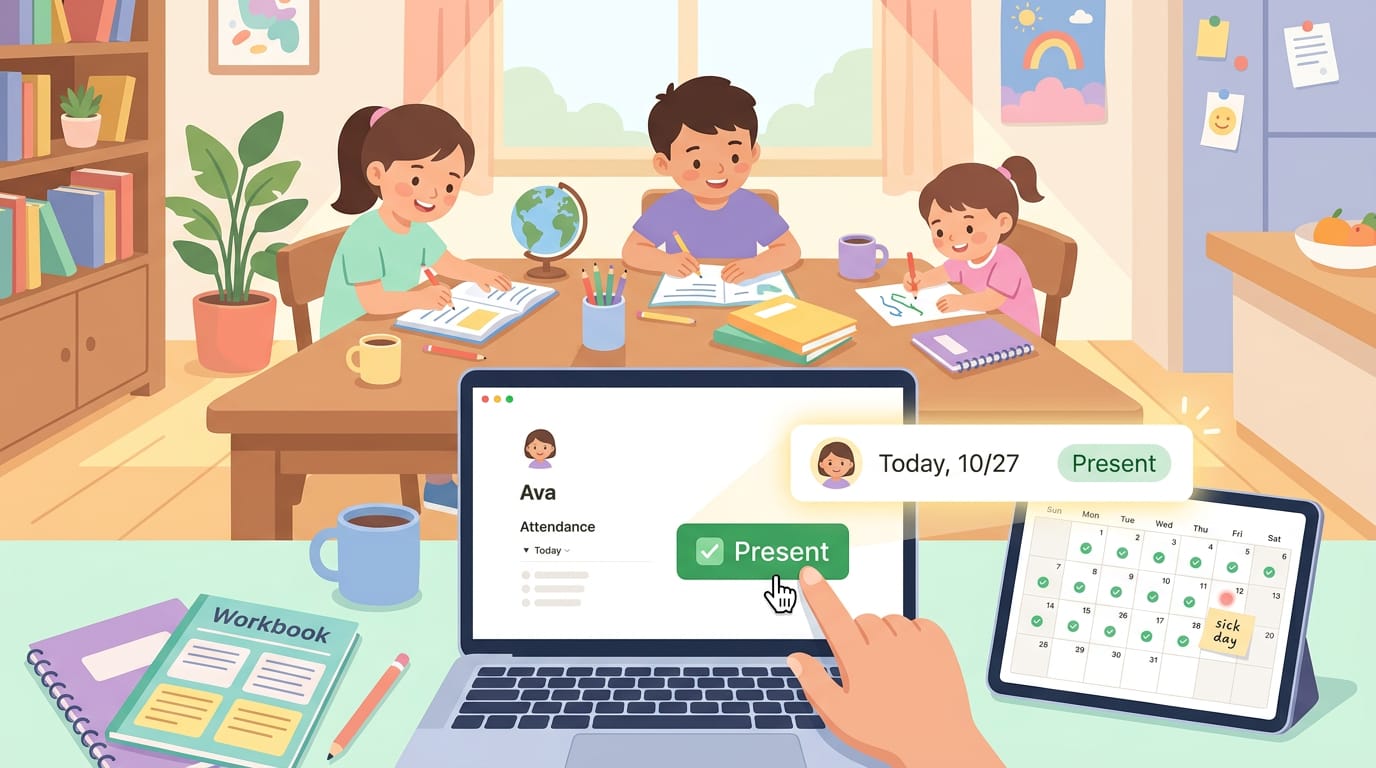
To track homeschool attendance in Notion, open your child's page and press the ✅ Present button under Attendance. One press makes today's entry with the child, the date and Present filled in. Absent days and days that don't count go in by hand on the Attendance page, with a note, and a calendar view shows the whole month.
The steps below use the Ultimate Homeschool Planner, with a made-up family of three children: Ava, Leo and Maya. By the end you will have a daily attendance record for each child, notes on the days they missed, a month view, and a yearly report page. The report's day count includes absent and n/a days as well as present ones. For the days present, a Status filter and Notion's Count all under the report's attendance list count them for you: Ava's showed COUNT 9.
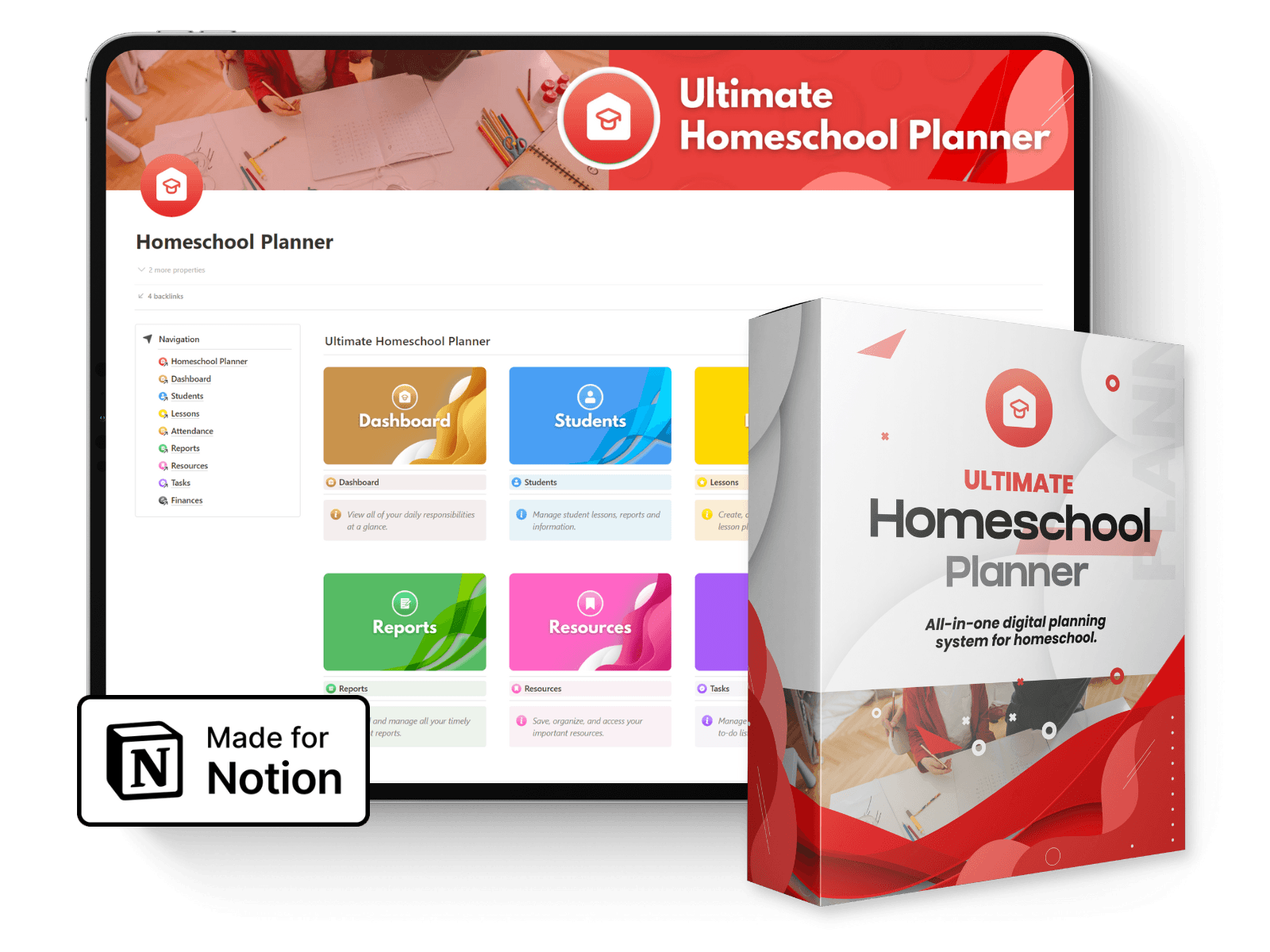
Ultimate Homeschool Planner
The ultimate all-in-one homeschooling system in Notion.
What the planner gives you for attendance
The planner has an Attendance page. On the left is a box of links to the rest of the planner (Dashboard, All Students, Lesson Plans, Settings). On the right is a table called Attendance Records, with four views across the top: Today, This Month, All and Calendar.
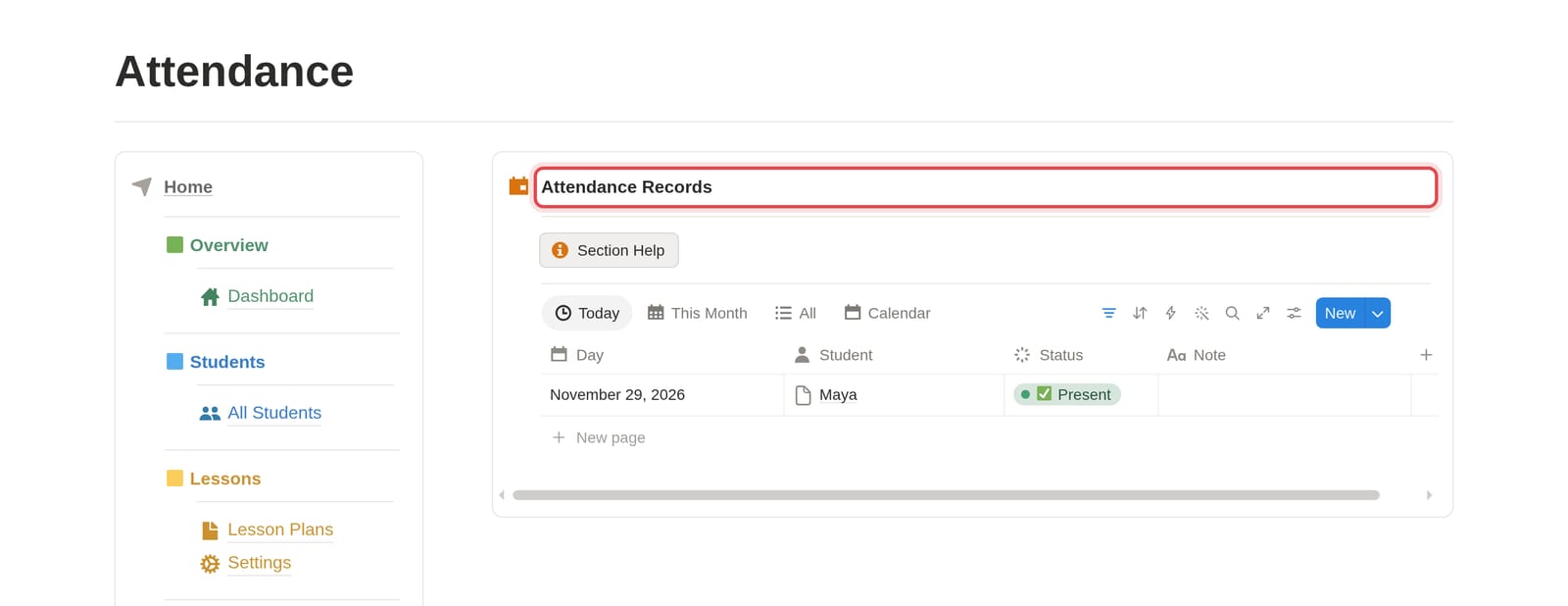
Each entry in Attendance Records is one child on one day. It has four columns:
Day: the date.
Student: the child, picked from your Students list.
Status: n/a, Absent or Present.
Note: the entry's title, where you write why a day was missed.
Every child's page in Students has an Attendance group with a ✅ Present button in it. That button is the one press a day. There is also a Reports table for a yearly report on each child.
If you don't have the planner yet, the Ultimate Homeschool Planner page shows what's in it.
Days or hours: what this tracker records
Homeschool laws differ from state to state. Some states ask you to keep a count of days, some a count of hours, and some ask for no attendance record at all. Check what your own state asks for before you choose how to keep yours.
The Attendance table records days: one entry per child per school day, with a status. It has no hours column. Hours go in the Logbook. Each Logbook entry is one lesson a child finished, with a Date Completed, and its Duration (min.) comes from that lesson. The yearly report's Total Time adds up the minutes in the child's Logbook entries within the report's dates and shows the total in hours. Maya's report read 1.42 hrs. for a 40-minute and a 45-minute lesson. Ava's read 0 hrs., because I had logged no lessons for her.
Mark a child present in one press
On the Attendance page, click All Students in the box on the left.
The All Students page shows a card for each child, with their name and grade (for example "Ava, 7th Grade"). The attendance button is not on these cards. Click the child's card to open their page.
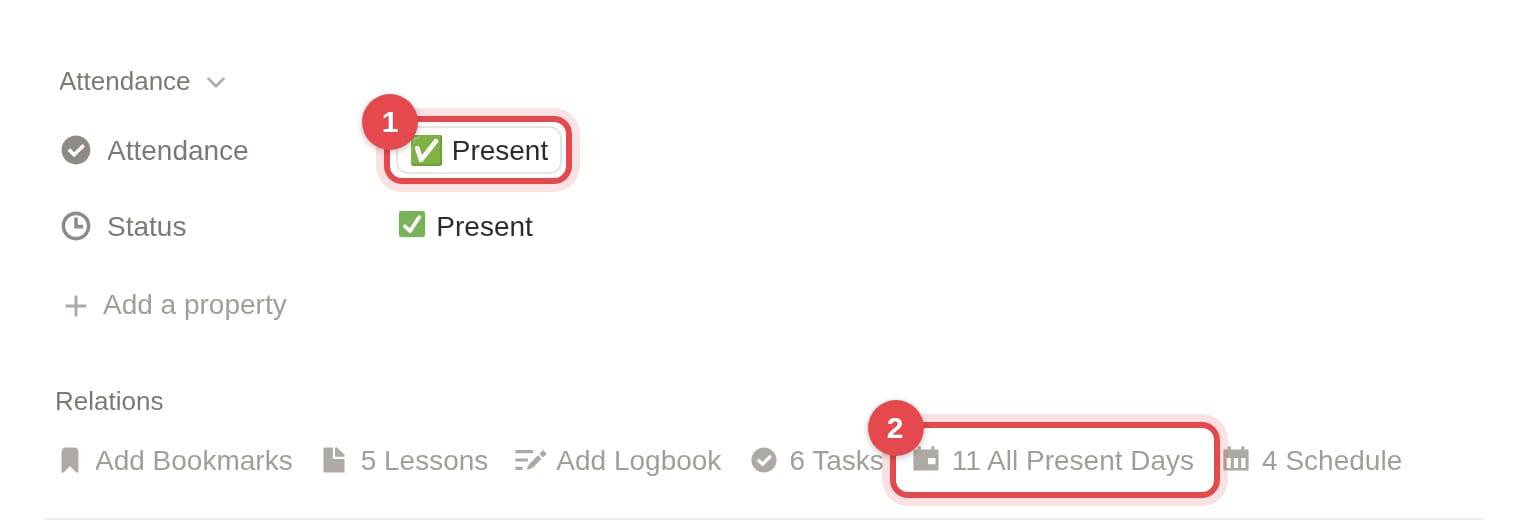
On the child's page, find the Attendance group under the student info. Press ✅ Present.
A small message with Open and Undo shows for a moment. The Status line under the button now reads ✅ Present. Under Relations at the bottom of the property list, the count of the child's attendance entries goes up by one. It is called All Present Days, but it counts every entry, absent and n/a days included. After Ava's first press it read 1. In the picture it reads 11, because her other November days were in by then.
Go back to the Attendance page. In the Today view, the child's new entry is listed with today's date and the time of the press ("November 29, 2026 4:04 PM"), and Status Present.
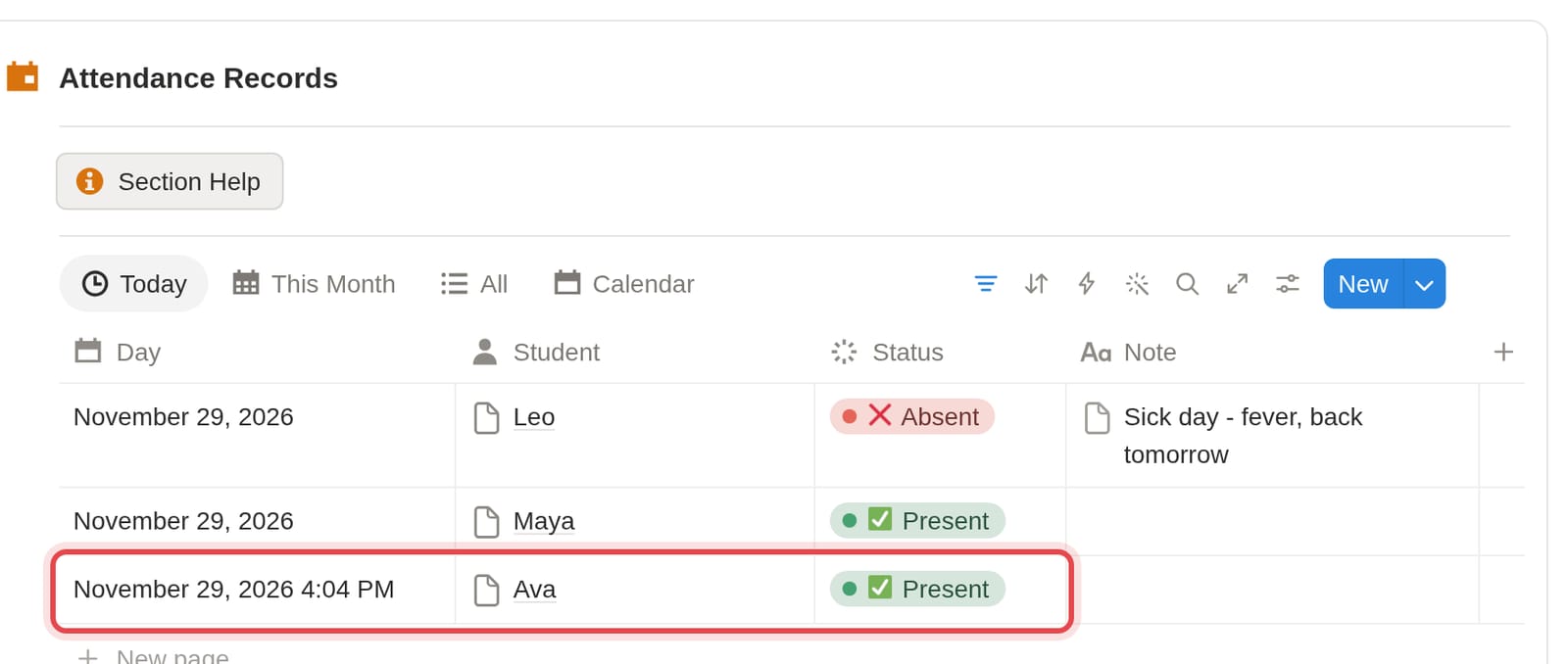
An entry made by the button has no note. Its title is "New page", and you can click it later to write one.
Mark a day absent, with a note
For a day your child missed, add the entry by hand on the Attendance page:
In Attendance Records, press New. A new entry opens on the right of the page. It is dated today and its Status is n/a.
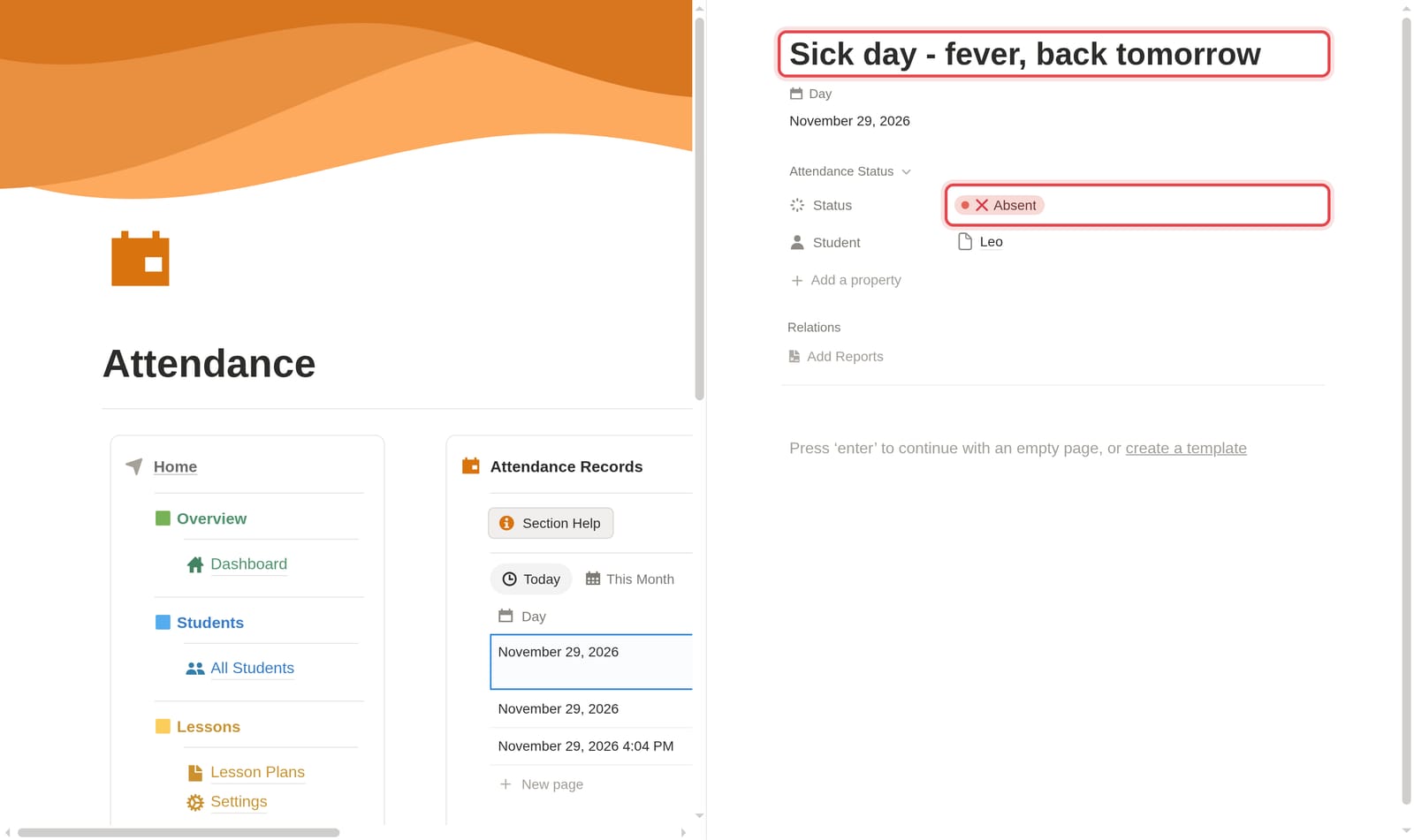
Next to Student, click the word Empty, not the word "Student": the property's name opens its own menu (Rename, Edit property and so on), which is not what you want. Pick the child from the list (here, Leo), then press Escape to close the list.
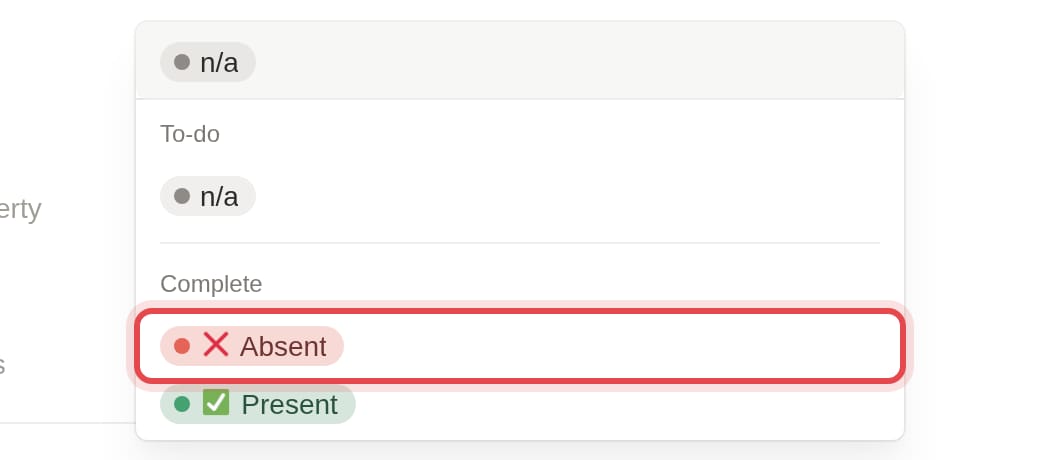
Next to Status, click n/a. The menu shows n/a under To-do, and Absent and Present under Complete. Choose Absent.
Click the entry's title, New page, and type your note: "Sick day - fever, back tomorrow". The title is the Note column in the table, so the reason shows right next to the day.
Days that don't count
The third status, n/a, is for a day you don't want counted as present or absent. An entry made with New starts at n/a. I used it for a co-op field trip on November 18, with the note "Co-op field trip day".
Write a note for each n/a day too. At the end of the year, "Co-op field trip day" tells you what happened. A row that says only n/a doesn't.
Several children at once
Each child has a ✅ Present button on their own page. On a school day with three children, that's three pages and three presses, one per child. For a child who is absent, use New on the Attendance page as above and pick that child as the Student.
The Today view on the Attendance page lists every child with an entry for today. On my test day it showed Maya and Ava as Present, and Leo as Absent with his note. It's a quick way to see that nobody was missed before you close the laptop.
See a month of attendance
On the Attendance page, click Calendar, next to Today, This Month and All.
The calendar opens on the current month. Each school day has a card for every entry, showing the note (or "New page"), the child's name and the status.
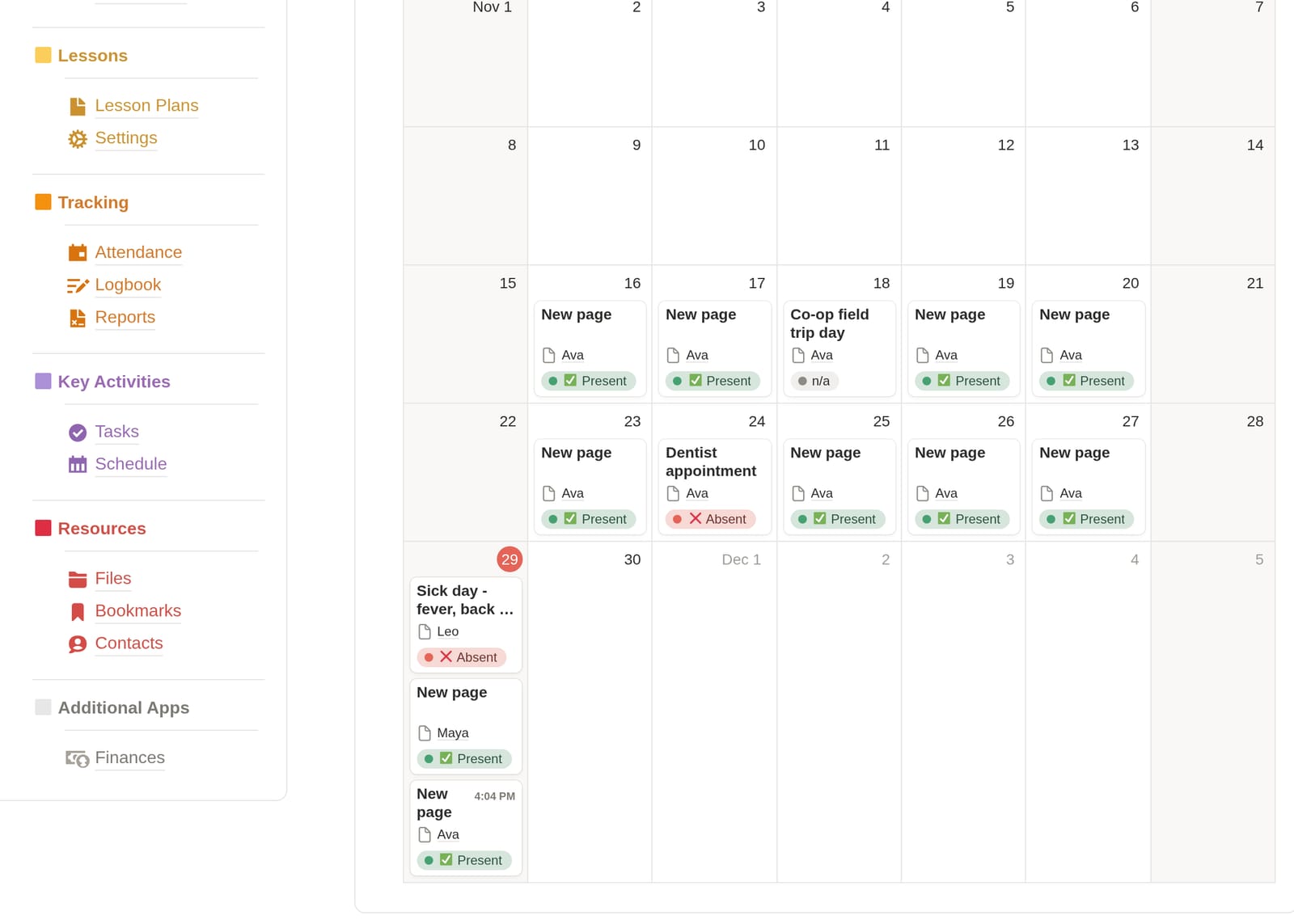
In this month, Ava was present every weekday from the 16th to the 27th, except two days. The 18th is n/a, a co-op field trip day, and the 24th is Absent, a dentist appointment. On the 29th, the cards for all three children sit in the same square: Leo absent, Maya present, and Ava present at 4:04 PM.
I entered Ava's days before the 29th by hand for this example, which is why they show no time. A day marked with the ✅ Present button shows the time of the press, like her card on the 29th.
This Month shows the same entries as a grouped list. I found the calendar easier to read at a glance.
The year-end total: the yearly report
Printable attendance sheets leave you to add up the year by hand. The planner has a Reports table that does the counting for each child.
On the Attendance page, scroll down and click Reports. The Reports table opens, with a sample report already in it.
Make an entry for your child. Give it a name ("Ava Yearly Report 2026/2027"), set Student to the child, and set Report Date to the school year as a date range (August 1, 2026 → July 31, 2027).
Open the new report. Its page is empty and offers a choice of templates. Choose New Report.
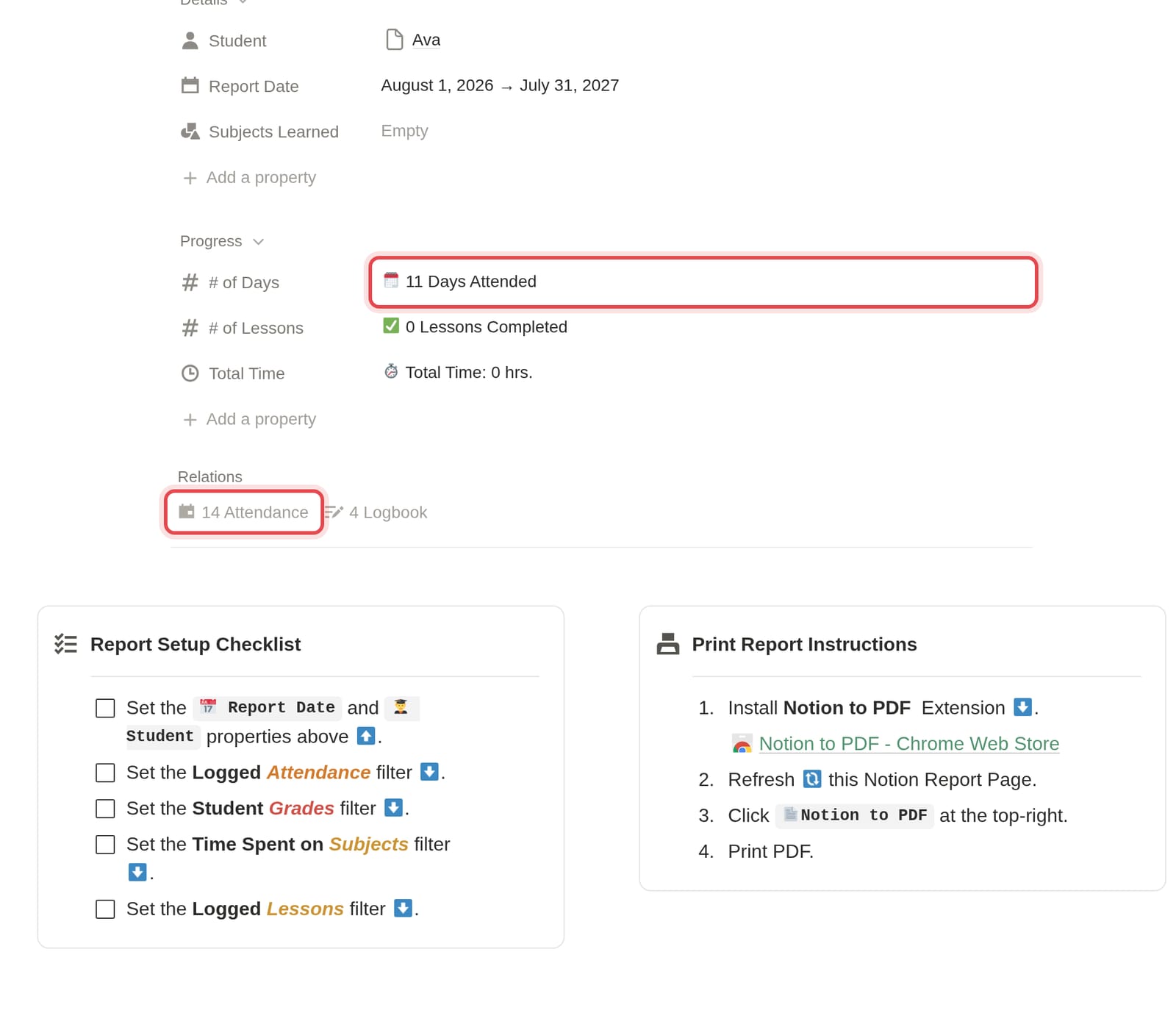
The page fills in. Under Progress are # of Days, # of Lessons and Total Time. Under Relations is the count of attendance entries the report holds. Below that come a Report Setup Checklist and Print Report Instructions.
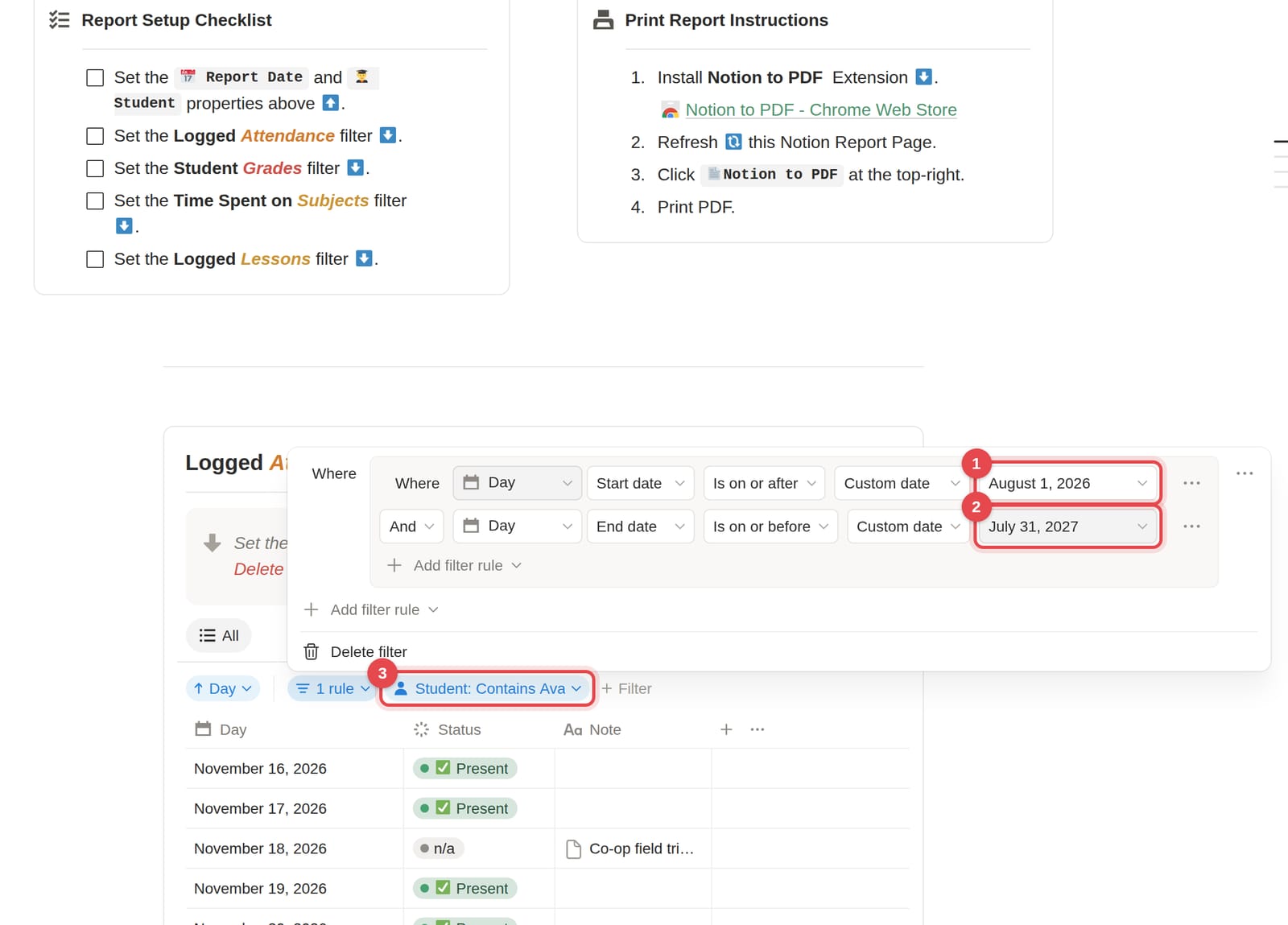
Scroll down to Logged Attendance. Its blue callout says: "Set the Filter to the desired date range and the correct student." Click the 1 rule chip above the list. It holds two rules for Day: Start date and End date, each set to Is and Custom date, with no date picked.
Set the school year. Click the first rule's Is and choose Is on or after, then click Select a date and pick August 1, 2026 (the arrows in the date picker change the month). Click the second rule's Is, choose Is on or before, and pick July 31, 2027.
Add the child: click Filter, choose Student, then pick the child (Ava). A chip reading Student: Contains Ava appears, and the list shows only that child's days.
The list then holds Ava's 11 entries for the school year so far, each with its status, and notes on the n/a and Absent days.
What # of Days counts. Clicking 11 Days Attended opens its formula. It counts the entries in the report's Attendance relation whose Day falls within Report Date and whose Student is the report's child, whatever their Status. So Ava's 11 is 9 Present days, 1 Absent and 1 n/a. The 14 Attendance under Relations is every entry in the Attendance table, the other children's and one from 2025 included, and the formula leaves those out. For the number of days present, let Logged Attendance count them:
Click + Filter at the end of the row of chips, choose Status, then click Present (under Complete in the menu). A chip reading Status: ✅ Present appears, and the list keeps only the present days.
Click the Status column's heading. In its menu, choose Calculate, then Count, then Count all. COUNT 9 shows under the list, below the Status column: Ava's present days for the school year.
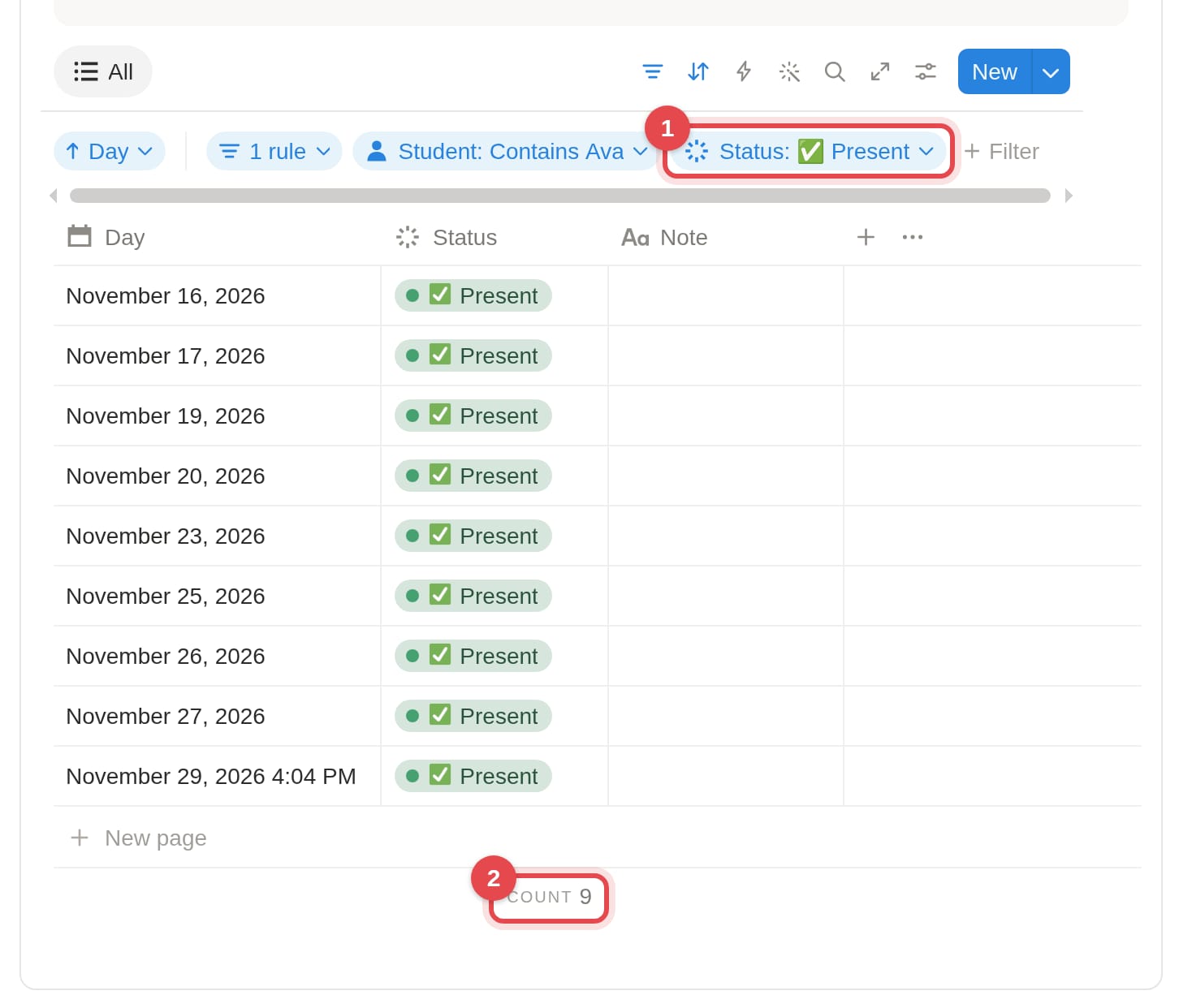
So the report gives both numbers: 11 days counted under # of Days, 9 of them present.
The Print Report Instructions on the same page explain how to turn the report into a PDF. I didn't try them here.
Keeping attendance next to the day's lessons
Attendance isn't kept apart from the rest of the planner. On each child's page, the attendance count sits in the same Relations line as their Lessons, Logbook, Tasks and Schedule. Ava's showed 5 Lessons, 6 Tasks and 4 Schedule next to her attendance. One page holds what the child is learning and which days they did it.
The yearly report does the same. # of Days sits next to # of Lessons and Total Time, and the Report Setup Checklist has a filter for logged lessons and time spent on subjects next to the attendance one. A note on an attendance entry ("Co-op field trip day") can say what the day was, while the lesson itself lives in Lessons.
For a tour of the Lessons, Logbook and the rest of the planner, read our Ultimate Homeschool Planner guide.
Make it your own
Pick your daily view. Today is the one to open while you take attendance. Calendar is the one for checking a month.
Write a note on every day that isn't a plain Present. The note is the entry's title, so it shows in every view, the calendar included.
Filter the report per child. Use one report per child, with the school year's dates and the Student filter on its Logged Attendance view, as above.
If your state counts hours, log each finished lesson in the Logbook. Its minutes come from the lesson's Duration (min.), and the yearly report adds them up as Total Time, next to the day count.
Get the Ultimate Homeschool Planner
When something doesn't work
There's no attendance button on the All Students page. The cards show only the name and grade. Click the child's card to open their page; the button is in its Attendance group.
Clicking "Student" opens a menu with Rename and Edit property. That is the property's own menu. Press Escape and click Empty next to it instead.
Button entries are all called "New page". The button fills in the child, the day and the status, but not the note. Click the title to add one.
No Calculate shows when you point under the Logged Attendance list. It didn't for me either. Click the column's heading instead: Calculate is in its menu.
Button entries show a time and hand-made ones don't. An entry from the button reads "November 29, 2026 4:04 PM". One made with New reads "November 29, 2026". Both are the same day.
More step-by-step guides for teachers and homeschool parents are on our home page.
FAQ
Can I track attendance for more than one child in Notion?
Yes. Each child has their own ✅ Present button on their page, and every entry names its child. The Today view on the Attendance page lists all your children's entries for the day together.
Does this tracker count hours or days?
Days. Each entry is one child on one school day with a status of Present, Absent or n/a. Hours go in the Logbook, one entry per finished lesson, and the yearly report adds them up as Total Time.
What should I mark on a holiday or field trip day?
Use n/a and write what the day was in the note, for example "Co-op field trip day". n/a sits apart from Present and Absent in the Status menu.
How do I see one child's attendance for a whole month?
The Calendar view on the Attendance page shows the month with the child's name on every card. For a list of one child's days only, use the Student filter on the Logged Attendance view of that child's yearly report.
Where do I find the total days for the year?
On the child's yearly report. # of Days counts every entry for that child within the report's dates, absent and n/a days included (Ava's read 11). For days present, add the filter Status: ✅ Present to the report's Logged Attendance list and choose Calculate, Count, Count all in the Status column's heading menu: Notion shows the total under the list (COUNT 9 for Ava).
Ultimate Homeschool Planner
The ultimate all-in-one homeschooling system in Notion.