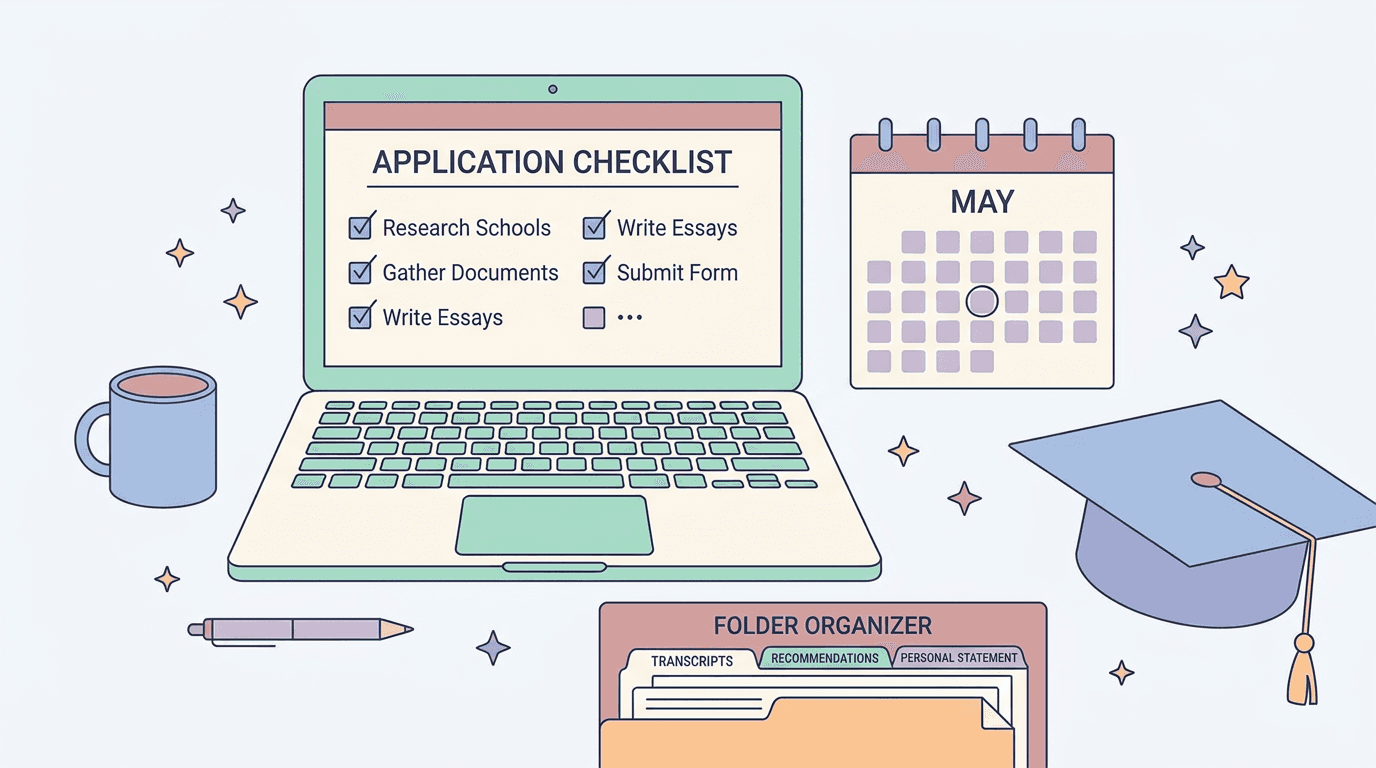
Build a College Application Dashboard in Notion
Build a College Application Dashboard in Notion

Article by
Milo
ESL Content Coordinator & Educator
ESL Content Coordinator & Educator
All Posts

College-planning meetings can end with sensible actions and no agreement about who will complete them. The student intends to check a requirement, a parent plans to find a document, and the teacher assumes both tasks are underway. A shared record makes those commitments easier to follow.
A simple Notion dashboard can give each student a private workspace for college research, tasks, and advising notes. Keep it small enough to update in a few minutes and use it to support decisions and follow-through.
Still grading everything by hand?
EMStudio is a free teaching management app — manage your classes, students, lessons, and more!
Learn More
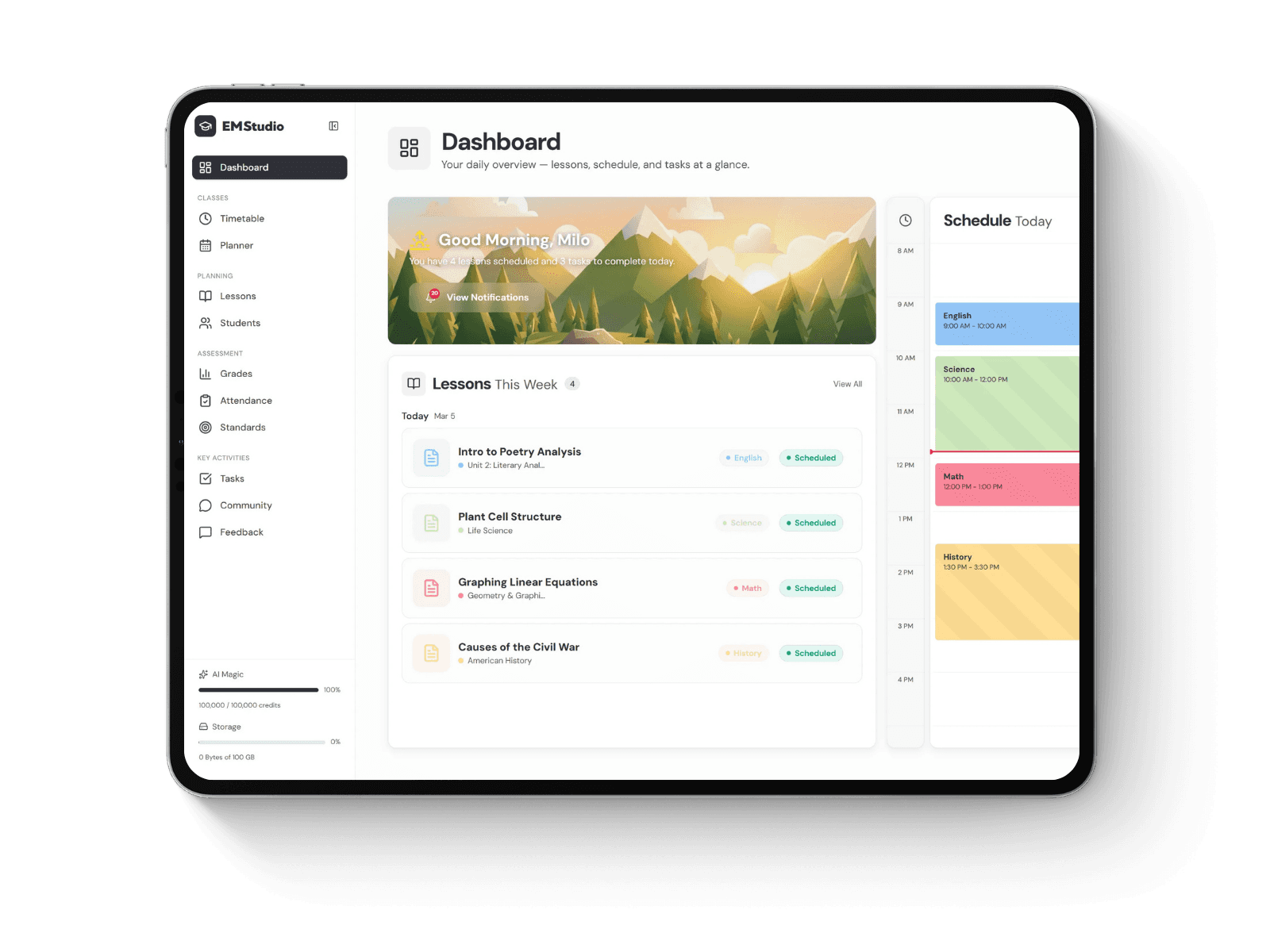
Still grading everything by hand?
EMStudio is a free teaching management app — manage your classes, students, lessons, and more!
Learn More
Table of Contents
Agree on the purpose before building
Begin with the student's questions. They may be comparing subjects, deciding which institutions to investigate, or trying to understand application requirements. Write down what they hope to learn during the next month and what help they want from school staff.
Record the roles of other supporters too. A family may seek advice from Ivy League admissions consultants while a teacher helps the student reflect on academic interests. Keep recommendations attributed to their source, then let the student record the decision and next action. This avoids turning differing opinions into competing instructions.
Keep financial fit and a balanced college list visible so students investigate suitable options beyond the most selective institutions.
Create a college list and an action table
Build two small databases. In Colleges, give each institution a row with its official admissions link, intended program, deadline information, and the student's questions. Keep application and financial-aid dates in separate fields when they differ.
In Actions, give each task a name that describes something someone can finish. “Research college” is difficult to assess; “check whether the biology department offers the course I want” has a visible result.
Use these properties as a starting point:
Property | What it records |
Task | A specific action with a clear finish |
College | The institution or general application it concerns |
Owner | The person responsible for the next action |
Due date | The agreed working date |
Status | To do, in progress, waiting, or done |
Source or evidence | The official requirement or completed result |
Distinguish the working date from the external deadline. A student might plan to request a document well before the college needs it. That distinction makes delays visible while there is still time to respond.
Add views that answer useful questions
Use a table to check details, a calendar to see dated tasks, and a board grouped by status to notice stalled work. Notion's guide to views, filters, and sorts explains how these views display the same database in different ways.
Create a view for unfinished tasks due soon and another for items marked Waiting. To add a filter, open the database settings, choose Filter under View settings, and select the relevant property. Sort by due date so the next commitment is easy to find.
Keep one record of each task so updates stay consistent across views. Add another view only when it answers a question someone actually asks.
Keep reflection beside the task list
A completed task can reveal that the original plan needs to change. After a college visit, for example, a student may discover that the course structure differs from what they expected. Add a short note explaining the observation and what they will investigate next.
Ask students to collect examples of their interests, responsibilities, and learning over time. These notes can support useful conversations about possible subjects and later application writing. Encourage accurate descriptions instead of a running list of impressive-sounding labels.
When discussing college application strategy, use the dashboard to examine whether the plan reflects the student's actual experiences and goals. A student interested in environmental questions might record a classroom project, an unanswered research question, and the courses they want to compare. The connection should be visible in the evidence, without forcing every activity into one theme.
Set access before students add personal information
Use a blank demonstration template for group instruction. Give students separate private copies rather than relying on filtered views of one shared class database to keep their records confidential. A filter controls what a view displays; it should not be treated as an access boundary.
Notion's sharing and permissions guidance describes invitation controls and different access levels. Review who can open each page, and follow your institution's approved tools and data-handling rules before using it with students.
Keep passwords, identity documents, household financial records, and confidential recommendations out of an ordinary planning dashboard. It is usually enough to record that a document has been requested or submitted through the appropriate official system.
Use a short meeting routine
At each check-in, ask the student to show one completed action, one unanswered question, and the next task they have chosen. Update ownership or dates when circumstances change. If a requirement is uncertain, verify it at the official source before adding more work.
Record the next meeting and what the student will bring. If they keep avoiding the dashboard, remove unused fields and views until the next action is easy to see.
Agree on the purpose before building
Begin with the student's questions. They may be comparing subjects, deciding which institutions to investigate, or trying to understand application requirements. Write down what they hope to learn during the next month and what help they want from school staff.
Record the roles of other supporters too. A family may seek advice from Ivy League admissions consultants while a teacher helps the student reflect on academic interests. Keep recommendations attributed to their source, then let the student record the decision and next action. This avoids turning differing opinions into competing instructions.
Keep financial fit and a balanced college list visible so students investigate suitable options beyond the most selective institutions.
Create a college list and an action table
Build two small databases. In Colleges, give each institution a row with its official admissions link, intended program, deadline information, and the student's questions. Keep application and financial-aid dates in separate fields when they differ.
In Actions, give each task a name that describes something someone can finish. “Research college” is difficult to assess; “check whether the biology department offers the course I want” has a visible result.
Use these properties as a starting point:
Property | What it records |
Task | A specific action with a clear finish |
College | The institution or general application it concerns |
Owner | The person responsible for the next action |
Due date | The agreed working date |
Status | To do, in progress, waiting, or done |
Source or evidence | The official requirement or completed result |
Distinguish the working date from the external deadline. A student might plan to request a document well before the college needs it. That distinction makes delays visible while there is still time to respond.
Add views that answer useful questions
Use a table to check details, a calendar to see dated tasks, and a board grouped by status to notice stalled work. Notion's guide to views, filters, and sorts explains how these views display the same database in different ways.
Create a view for unfinished tasks due soon and another for items marked Waiting. To add a filter, open the database settings, choose Filter under View settings, and select the relevant property. Sort by due date so the next commitment is easy to find.
Keep one record of each task so updates stay consistent across views. Add another view only when it answers a question someone actually asks.
Keep reflection beside the task list
A completed task can reveal that the original plan needs to change. After a college visit, for example, a student may discover that the course structure differs from what they expected. Add a short note explaining the observation and what they will investigate next.
Ask students to collect examples of their interests, responsibilities, and learning over time. These notes can support useful conversations about possible subjects and later application writing. Encourage accurate descriptions instead of a running list of impressive-sounding labels.
When discussing college application strategy, use the dashboard to examine whether the plan reflects the student's actual experiences and goals. A student interested in environmental questions might record a classroom project, an unanswered research question, and the courses they want to compare. The connection should be visible in the evidence, without forcing every activity into one theme.
Set access before students add personal information
Use a blank demonstration template for group instruction. Give students separate private copies rather than relying on filtered views of one shared class database to keep their records confidential. A filter controls what a view displays; it should not be treated as an access boundary.
Notion's sharing and permissions guidance describes invitation controls and different access levels. Review who can open each page, and follow your institution's approved tools and data-handling rules before using it with students.
Keep passwords, identity documents, household financial records, and confidential recommendations out of an ordinary planning dashboard. It is usually enough to record that a document has been requested or submitted through the appropriate official system.
Use a short meeting routine
At each check-in, ask the student to show one completed action, one unanswered question, and the next task they have chosen. Update ownership or dates when circumstances change. If a requirement is uncertain, verify it at the official source before adding more work.
Record the next meeting and what the student will bring. If they keep avoiding the dashboard, remove unused fields and views until the next action is easy to see.
Still grading everything by hand?
EMStudio is a free teaching management app — manage your classes, students, lessons, and more!
Learn More
Still grading everything by hand?
EMStudio is a free teaching management app — manage your classes, students, lessons, and more!
Learn More


Notion4Teachers
Notion templates to simplify administrative tasks and enhance your teaching experience.



2026 Notion4Teachers. All Rights Reserved.
Notion4Teachers
Notion templates to simplify administrative tasks and enhance your teaching experience.
2026 Notion4Teachers. All Rights Reserved.
Notion4Teachers
Notion templates to simplify administrative tasks and enhance your teaching experience.
2026 Notion4Teachers. All Rights Reserved.