
Optimizing an Educator's Workflow on Mac: Working with Documents
Optimizing an Educator's Workflow on Mac: Working with Documents

Article by
Milo
ESL Content Coordinator & Educator
ESL Content Coordinator & Educator
All Posts
Still grading everything by hand?
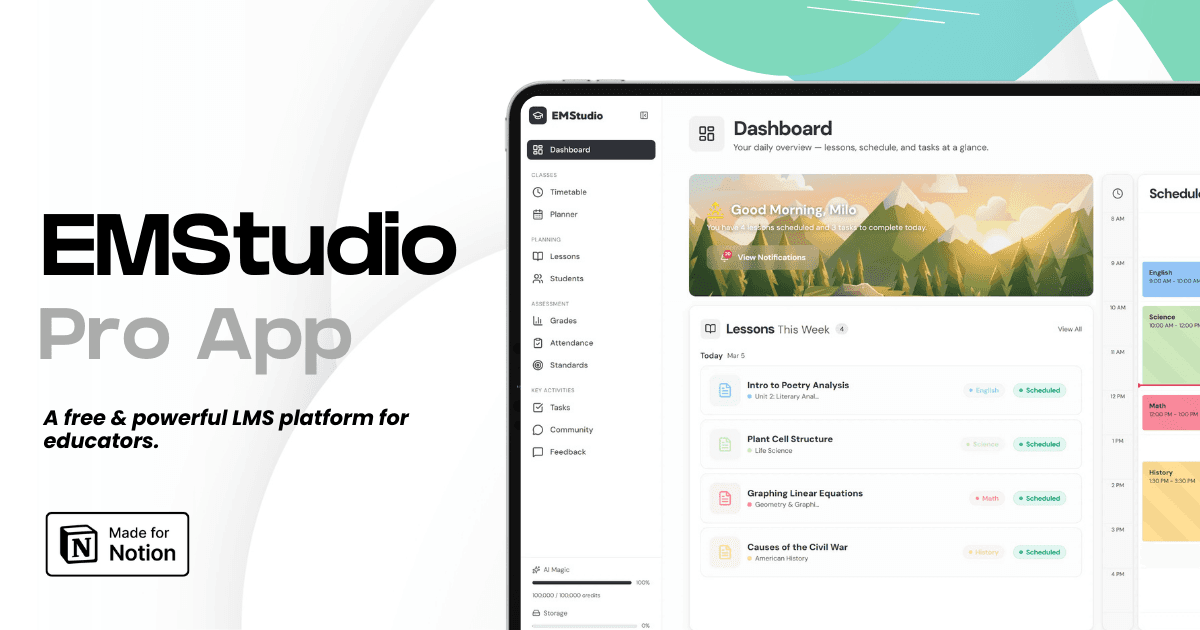
EMStudio is a free teaching management app — manage your classes, students, lessons, and more!
Learn More
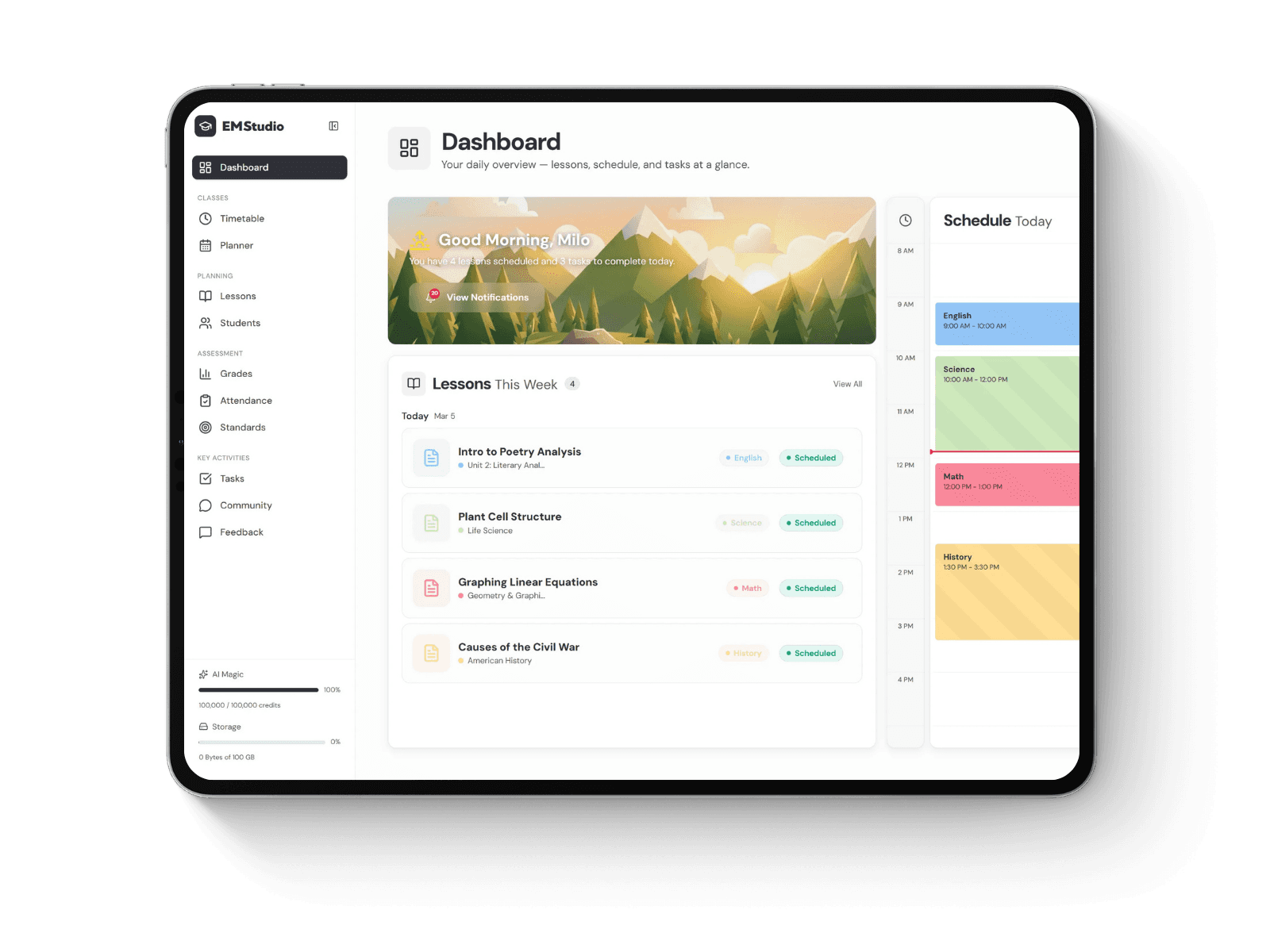
Still grading everything by hand?
EMStudio is a free teaching management app — manage your classes, students, lessons, and more!
Learn More
Table of Contents
Overview
In today’s educational institutions, the Mac is no longer just a high-end laptop. For teachers, it has become a central work tool. They use it to store teaching materials and grade assignments. They also edit PDF files and create lecture notes. On the Mac, data syncs seamlessly across platforms. But even a powerful MacBook doesn’t guarantee a comfortable workflow if your document system is disorganized. Every day, teachers open dozens of files and review student work, all while switching between their browser, Notion, and PDF editors. Because of this, minor settings start to directly affect concentration and, consequently, work speed.
Organize Your Documents Without Digital Clutter
One of the main obstacles to a productive teaching workflow isn’t the sheer volume of documents, but the lack of a clear structure. When lecture materials, student essays, and administrative files are all jumbled together in a single “Downloads” folder, even the best Mac won’t help you work faster. Take a more practical approach. Create separate folders for courses, semesters, and document types. Finder in macOS lets you add tags. Color-coding will help you quickly find lecture drafts or graded assignments.

How folder structure affects concentration
When documents have a predictable storage system, your brain spends fewer resources searching for info. It is crucial during remote learning, when an instructor is simultaneously teaching, responding to messages, and grading assignments. The simple rule “one course—one main folder” lowers the risk of accidentally sending students the wrong file version.
Using Smart Folders in macOS
Smart Folders in Finder are often underrated, even though they save a significant amount of time. A teacher can create a folder that automatically displays all PDF files opened in the last seven days. It is useful at the end of the week when you need to quickly refer back to recently graded documents.
Why changing the PDF viewer on a Mac improves student work grading
After organizing their files, many teachers notice another issue. The standard Preview app isn’t always suitable for active review of student papers or working with interactive PDFs. One practical adjustment that can improve document handling immediately is learning how to properly change default PDF viewer on Mac. In practice, this is done through Finder. Simply click Get Info on any PDF file, select the desired app from the Open With menu, and click the Change All button. This change helps you open documents in the app that best supports annotations, digital signatures, or integration with other services. For teachers who work with large archives of materials, it greatly simplifies the review of assignments and interaction with Notion.
Working with PDFs Effortlessly
The default settings in macOS don’t always meet the educators demands. Preview is great for quickly viewing files. Yet, when you’re working with large documents that contain comments or forms, it may not be as flexible as specialized solutions.
Educators who regularly review written assignments often use text highlighting, comments, and digital signatures. In such cases, Adobe Acrobat Reader, PDF Expert, or Skim offer more capabilities. It is especially noticeable when you are working with research papers or master’s theses. That is, where you need to quickly switch between annotations.
Another reason to change the default PDF viewer on Mac is more stable integration with cloud services. If a PDF opens automatically in the right program, the lecturer does not waste time manually swapping between apps.
Mac PDF settings for quick grading
Properly configured Mac PDF settings help reduce repetitive tasks. Enable automatic opening of recent tabs in the PDF editor and sync comments via iCloud Drive. This way, you can continue reviewing documents from where you left off.
Set up keyboard shortcuts for annotations. During long grading sessions, even a few seconds saved on each document reduces fatigue.

Integrating Notion into the Teaching Workflow
Notion has become popular among educators thanks to its potential to create comprehensive repositories of educational materials. On a Mac, it's extra convenient because of:
Fast synchronization across devices,
Drag-and-drop support.
How Notion works with PDF docs
Teachers can:
Attach PDF lecture notes directly to course pages,
Add comments,
Organize materials by topic.
If the PDF viewer is set up correctly, documents will open without any extra steps. Teachers can also turn lecture notes and other study materials from PDF to flashcards, making key concepts easier to review and helping students prepare for exams. This simplifies work during lectures when you need to quickly switch from the lesson plan to a specific file.
For researchers and instructors in the humanities, the integration between Notion and Skim is helpful. Annotations in PDFs can be used for:
Сreating separate notes,
Further preparation for seminars.
Productivity Tools for Teachers That Actually Save Time
Alfred helps you quickly find files and run commands using the keyboard.
Raycast offers a similar approach but integrates better with calendars and task managers.
Stage Manager helps keep only the windows you need open during online classes. Visual clutter is reduced and it is easier to concentrate.
TextSniper will be useful for teachers who work with large amounts of text. It allows you to quickly copy text from PDFs or presentations.
How to reduce document fatigue
Even the best productivity tools for teachers won’t help if the teacher constantly works in an overloaded digital environment. That’s why you should minimize unnecessary tabs and automate repetitive processes.
Automation via Shortcuts
You can automate routine tasks without programming. You can create a command that:
Automatically renames student assignments according to a template,
Adds them to the correct folder,
Opens them in your chosen PDF editor.
Managing alerts while checking assignments
Constant alerts from messengers and email greatly reduce your focus. The Focus Mode in macOS helps create a separate “Grading” mode, where only the necessary apps remain active.

Conclusion
Optimizing document management on a Mac isn’t just about installing popular apps. The greatest impact comes from small but thoughtful changes:
A clear folder structure,
A well-chosen PDF viewer,
Notion integration,
Automation of repetitive tasks.
For teachers, this is a way to grade papers faster while staying focused and spending less time on chaotic file searches. When a Mac is set up for the actual teaching process, technology begins to support the quality of teaching. Also, regularly review your course archives and delete duplicate files. Update your folder structure before the new semester. This habit will help you keep your documents organized and avoid confusion during the daily, intensive grading of student work.
Overview
In today’s educational institutions, the Mac is no longer just a high-end laptop. For teachers, it has become a central work tool. They use it to store teaching materials and grade assignments. They also edit PDF files and create lecture notes. On the Mac, data syncs seamlessly across platforms. But even a powerful MacBook doesn’t guarantee a comfortable workflow if your document system is disorganized. Every day, teachers open dozens of files and review student work, all while switching between their browser, Notion, and PDF editors. Because of this, minor settings start to directly affect concentration and, consequently, work speed.
Organize Your Documents Without Digital Clutter
One of the main obstacles to a productive teaching workflow isn’t the sheer volume of documents, but the lack of a clear structure. When lecture materials, student essays, and administrative files are all jumbled together in a single “Downloads” folder, even the best Mac won’t help you work faster. Take a more practical approach. Create separate folders for courses, semesters, and document types. Finder in macOS lets you add tags. Color-coding will help you quickly find lecture drafts or graded assignments.
How folder structure affects concentration
When documents have a predictable storage system, your brain spends fewer resources searching for info. It is crucial during remote learning, when an instructor is simultaneously teaching, responding to messages, and grading assignments. The simple rule “one course—one main folder” lowers the risk of accidentally sending students the wrong file version.
Using Smart Folders in macOS
Smart Folders in Finder are often underrated, even though they save a significant amount of time. A teacher can create a folder that automatically displays all PDF files opened in the last seven days. It is useful at the end of the week when you need to quickly refer back to recently graded documents.
Why changing the PDF viewer on a Mac improves student work grading
After organizing their files, many teachers notice another issue. The standard Preview app isn’t always suitable for active review of student papers or working with interactive PDFs. One practical adjustment that can improve document handling immediately is learning how to properly change default PDF viewer on Mac. In practice, this is done through Finder. Simply click Get Info on any PDF file, select the desired app from the Open With menu, and click the Change All button. This change helps you open documents in the app that best supports annotations, digital signatures, or integration with other services. For teachers who work with large archives of materials, it greatly simplifies the review of assignments and interaction with Notion.
Working with PDFs Effortlessly
The default settings in macOS don’t always meet the educators demands. Preview is great for quickly viewing files. Yet, when you’re working with large documents that contain comments or forms, it may not be as flexible as specialized solutions.
Educators who regularly review written assignments often use text highlighting, comments, and digital signatures. In such cases, Adobe Acrobat Reader, PDF Expert, or Skim offer more capabilities. It is especially noticeable when you are working with research papers or master’s theses. That is, where you need to quickly switch between annotations.
Another reason to change the default PDF viewer on Mac is more stable integration with cloud services. If a PDF opens automatically in the right program, the lecturer does not waste time manually swapping between apps.
Mac PDF settings for quick grading
Properly configured Mac PDF settings help reduce repetitive tasks. Enable automatic opening of recent tabs in the PDF editor and sync comments via iCloud Drive. This way, you can continue reviewing documents from where you left off.
Set up keyboard shortcuts for annotations. During long grading sessions, even a few seconds saved on each document reduces fatigue.
Integrating Notion into the Teaching Workflow
Notion has become popular among educators thanks to its potential to create comprehensive repositories of educational materials. On a Mac, it's extra convenient because of:
Fast synchronization across devices,
Drag-and-drop support.
How Notion works with PDF docs
Teachers can:
Attach PDF lecture notes directly to course pages,
Add comments,
Organize materials by topic.
If the PDF viewer is set up correctly, documents will open without any extra steps. Teachers can also turn lecture notes and other study materials from PDF to flashcards, making key concepts easier to review and helping students prepare for exams. This simplifies work during lectures when you need to quickly switch from the lesson plan to a specific file.
For researchers and instructors in the humanities, the integration between Notion and Skim is helpful. Annotations in PDFs can be used for:
Сreating separate notes,
Further preparation for seminars.
Productivity Tools for Teachers That Actually Save Time
Alfred helps you quickly find files and run commands using the keyboard.
Raycast offers a similar approach but integrates better with calendars and task managers.
Stage Manager helps keep only the windows you need open during online classes. Visual clutter is reduced and it is easier to concentrate.
TextSniper will be useful for teachers who work with large amounts of text. It allows you to quickly copy text from PDFs or presentations.
How to reduce document fatigue
Even the best productivity tools for teachers won’t help if the teacher constantly works in an overloaded digital environment. That’s why you should minimize unnecessary tabs and automate repetitive processes.
Automation via Shortcuts
You can automate routine tasks without programming. You can create a command that:
Automatically renames student assignments according to a template,
Adds them to the correct folder,
Opens them in your chosen PDF editor.
Managing alerts while checking assignments
Constant alerts from messengers and email greatly reduce your focus. The Focus Mode in macOS helps create a separate “Grading” mode, where only the necessary apps remain active.
Conclusion
Optimizing document management on a Mac isn’t just about installing popular apps. The greatest impact comes from small but thoughtful changes:
A clear folder structure,
A well-chosen PDF viewer,
Notion integration,
Automation of repetitive tasks.
For teachers, this is a way to grade papers faster while staying focused and spending less time on chaotic file searches. When a Mac is set up for the actual teaching process, technology begins to support the quality of teaching. Also, regularly review your course archives and delete duplicate files. Update your folder structure before the new semester. This habit will help you keep your documents organized and avoid confusion during the daily, intensive grading of student work.
Still grading everything by hand?
EMStudio is a free teaching management app — manage your classes, students, lessons, and more!
Learn More
Still grading everything by hand?
EMStudio is a free teaching management app — manage your classes, students, lessons, and more!
Learn More



Notion4Teachers
Notion templates to simplify administrative tasks and enhance your teaching experience.



2026 Notion4Teachers. All Rights Reserved.
Notion4Teachers
Notion templates to simplify administrative tasks and enhance your teaching experience.
2026 Notion4Teachers. All Rights Reserved.
Notion4Teachers
Notion templates to simplify administrative tasks and enhance your teaching experience.
2026 Notion4Teachers. All Rights Reserved.